When you are running a printer, the first and only goal is to get high print quality. Fading text, messy flecks, and dull colors can transform important documents into unprofessional prints very quickly. When there is an insufficient correlation between the predefined parameters on the printer and the actual parameters of the media that is used, the issue arises. In most instances, you can correct the situation with simple adjustments.
In other words, there are many factors involved, but they can usually be resolved with only some minor adjustments to your calibration settings. This comprehensive guide details the exact elements influencing your printer output clarity. Though the Brother printer online support is available, it is recommended that you repair it yourself because it is doable. We also provide actionable troubleshooting methods to unlock the maximum clarity from your printing setup today.
What Affects Your Print Quality?
There is no single thing that affects the printing quality. Print output clarity relies heavily on the complex interaction between mechanical hardware and digital configuration. With time, the buildup of dust or dried inks in the tiny nozzle openings can also block the supply of ink, resulting in a non-uniform distribution of ink and faint horizontal lines on the page. Likewise, laser printers are affected by an accumulation of residual toner in the drum assembly, which can produce unwanted shadows and repeated streaks of toner on clean sheets of paper.
Beyond the physical state of your printing machine, software instructions control how toner or ink bonds with different fibers. Sending a high-resolution document to a printer configured for standard drafts creates a significant mismatch, forcing the device to compress details. Environmental humidity also forces paper sheets to absorb microscopic moisture layers, causing the underlying media to warp and reject uniform formatting during high-temperature bonding phases.
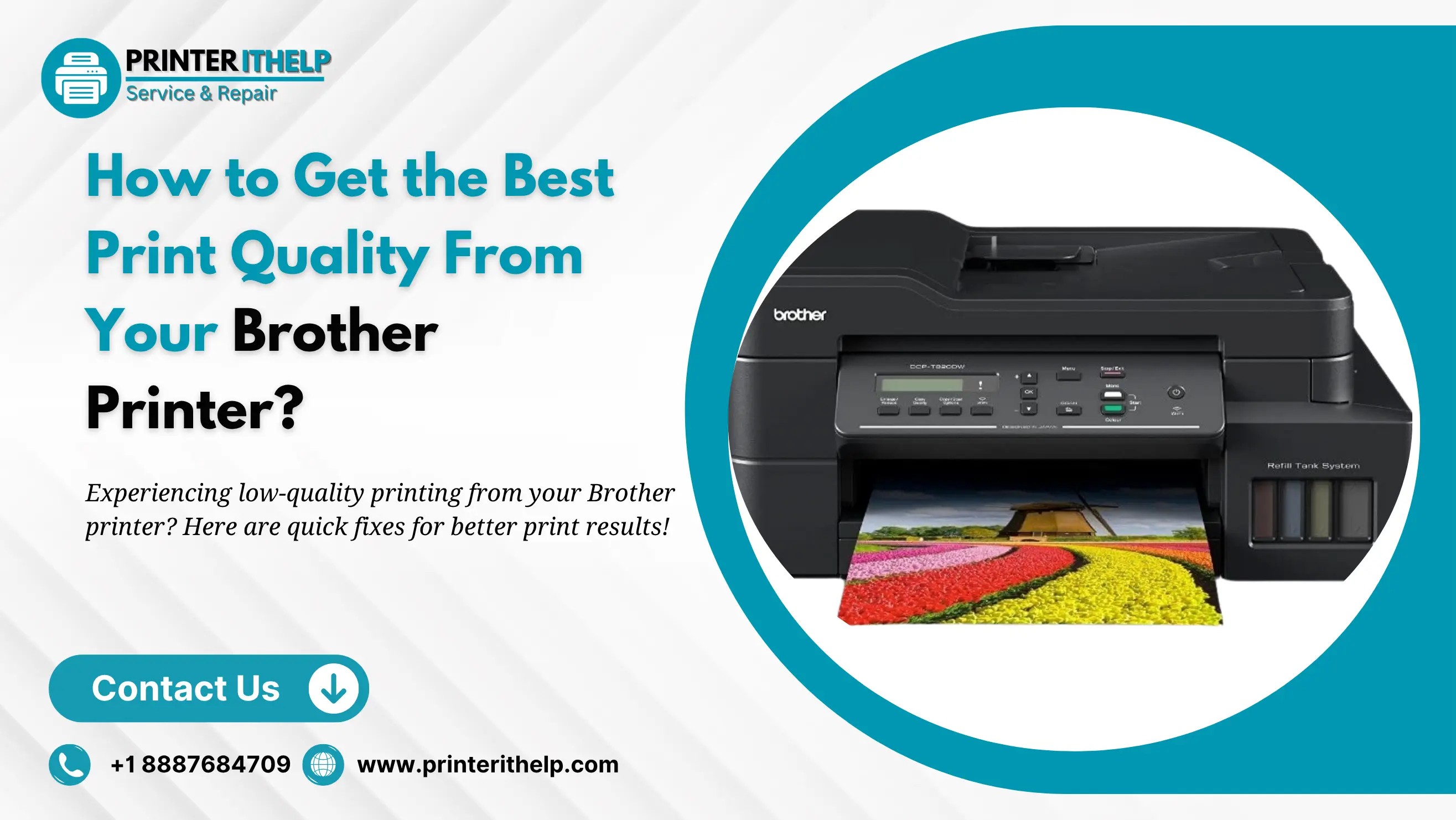
How to Get the Best Print Quality From Your Brother Printer?
Optimizing your Brother printing machine involves adjusting basic software configurations and establishing consistent maintenance routines. By following these foundational technical steps, you can eliminate most clarity problems and achieve professional corporate results every time you press print.
Configure the Paper Settings
The very first step is to match your digital configuration to the physical paper loaded into the tray. It directly affects the changes in how the internal rollers feed each sheet. When you select thick cardstock or glossy photo paper in the print preferences dialogue menu, the machine automatically slows its operational speed and modifies its heat application. This adjustment gives ink sufficient time to dry completely or allows toner to melt perfectly into dense fibers without smudging during delivery.
Run Regular Printhead Cleaning and Maintenance Cycles
Microscopic nozzles frequently experience blockages due to airborne dust particles or dried fluid remnants sitting inside the carriage assembly. Utilizing the built-in automated maintenance utilities safely forces fresh ink through the system to dislodge stubborn clues and restore uniform distribution. For laser equipment, carefully sliding the primary green corona wire tab back and forth cleans accumulated grime off the internal mechanism to eliminate vertical streaking instantly.
Optimize Print Resolution and Quality Drivers
Standard factory configurations often prioritize printing speed and conservation over crisp definition, which leaves text looking slightly gray or jagged. Accessing your advanced system driver properties allows you to switch the output mode from regular draft up to fine presentation resolution. This adjustment increases the dots per inch density, ensuring complex diagrams, fine regulatory details, and small font sizes remain entirely legible and sharp.
Use High-Quality Paper and Certified Toner Cartridges
The physical materials fed into a machine play a massive role in the final look of any document. Many people do not realize that low grade paper frequently sheds tiny fibers and microscopic dust during the printing process. Over time, this debris accumulates inside the delicate paper path, coating the feed rollers and clogging sensors, which ultimately distorts mechanical precision and causes frequent alignment errors. Investing in premium bright white paper with a uniform, smooth surface changes everything because it ensures clean ink absorption, prevents bleeding, and creates a sharp, crisp contrast that makes text pop.
Using superior paper works best when paired with certified manufacturing cartridges rather than substandard generic refills. These certified options are formulated with precise chemical melting points tailored specifically to your internal heating elements, which prevents the uneven distribution, leaking, and premature fading that often ruins important print jobs. When these two elements align, the hardware runs exactly as intended, protecting the machine from long term wear while delivering deep, professional colors.
If you want to avoid these hardware headaches entirely, PrinterITHelp provides dedicated cartridge diagnostic support and material optimization. We help you to achieve the best quality printing without any unexpected maintenance issues.
Keep Your Printer Firmware and Software Up to Date
Internal operating systems require periodic patches to fix underlying code bugs that control voltage distribution and color rendering profiles. Installing the latest official firmware releases ensures the machine communicates flawlessly with updated computer operating systems. These digital updates refine how the hardware processes complex imaging data, leading to smoother color gradients and better overall resource efficiency.
Conclusion
Achieving flawless print results does not require a brand-new machine but rather consistent maintenance and optimized configurations. By aligning your digital driver properties with premium materials and running occasional cleaning cycles, you can easily maintain professional standards. When stubborn streaks or deep configuration errors persist despite your best efforts, specialized remote support makes a significant difference. The technical team at PrinterITHelp offers comprehensive online Brother printer assistance to resolve complex alignment problems and restore your device to peak performance.
If you are struggling with persistent faded text or color errors, let the certified experts at PrinterITHelp optimize your configuration today. Our team specializes in remote driver calibration and deep printhead diagnostic routines to ensure your documents always look immaculate. Reach out to us now for immediate online support and experience professional-quality printing without the hassle.