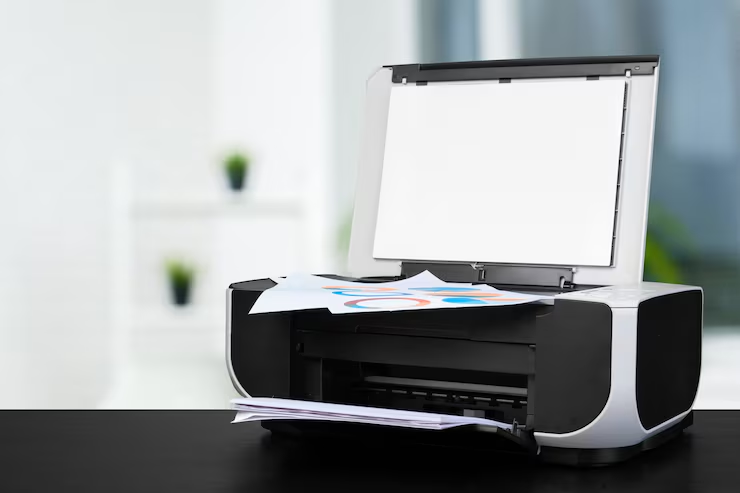
Printer Troubleshooting
Printers are a necessary part of everyday life in the USA. People require printers at home, in educational institutions, as well as in their workplaces. At times, these devices stop working or display some kind of error message or fail to print at the precise moment. All these can become stressful situations, as people need these devices to get their work done. This will help you understand printer troubleshooting at a very simple level.
Basic Checks to Perform First
If your printer is not working, always begin with basic checks. These steps solve many problems before deeper action is needed.
- Make sure the printer is connected properly to a power source.
- Check that the printer is turned on and shows no warning lights.
- Confirm the paper is placed correctly in the tray.
- Check printer ink or toner levels to ensure that they are not empty.
These simple checks often fix printing issues quickly and prevent wasted time.
Restart and System Refresh Steps
If there are still problems with the printer, you should try turning the printer and computer off and then turning them on again. Turning the devices off and on will eliminate small system glitches and reset the system connection. Most system problems associated with the printer will be eliminated.
Once reset, you must wait until it is ready to print again. Doing so ensures that it reconnects to the computer completely without experiencing any further issues.
Setup and Connection Related Issues
An incorrect setup can create printing problems later. In such cases, getting printer installation help becomes useful. Always follow the instructions shown on the printer screen or in the user guide. Installing the correct driver for your operating system is very important.
Many users also ask how to connect a laptop to printer during setup.
- For wired printing, ensure the USB cable is firmly connected
- For wireless printing, confirm both devices are on the same WiFi network
- Open printer settings and select the printer as the default device
These steps help ensure a stable connection and smooth printing.
Print Queue and Printer Status Problems
Sometimes, it might connect successfully but fail to print. This is normally caused by jobs that are stuck.
Open the print queue and delete paused or pending print jobs. Print jobs can sometimes get queued for a long time and prevent new print jobs from printing. Also, verify that the printer is online. Set the printer to online from the print settings if it stays offline.
Network and Wireless Printing Issues
Wireless printers may stop working after a WiFi change or network update. Verify the WiFi name and password entered on the printer. During setup, place the printer near the router to maintain a strong signal.
Weak WiFi signals often cause delayed printing, connection loss, or printer errors. Keeping the printer close to the router during setup helps avoid these problems.
Ink, Paper, and Print Quality Problems
Low ink or toner levels can cause faded or unclear prints. Replace cartridges if print quality drops. Paper jams should be removed slowly without force to avoid damage.
Cleaning printer rollers and print heads helps paper move smoothly and improves print output. Regular cleaning reduces the chance of repeated jams.
When Online Support Is Useful
If home steps fail to fix the issue, online printer troubleshooting service becomes a helpful option. Remote experts guide users step by step without needing a store visit.
A trusted troubleshooting service checks drivers, system settings, and connection issues safely. This saves time and reduces repeated trial attempts.
With online printer troubleshooting support, users receive clear guidance that helps avoid confusion and repeated printer errors.
When to Seek Professional Help
If problems continue after you follow all the steps, driver conflicts, network issues, or internal hardware faults may cause the issue. At this stage, expert assistance can save time and prevent unnecessary frustration. With clear guidance and quick support, users across the USA can resolve printer issues easily and without stress.