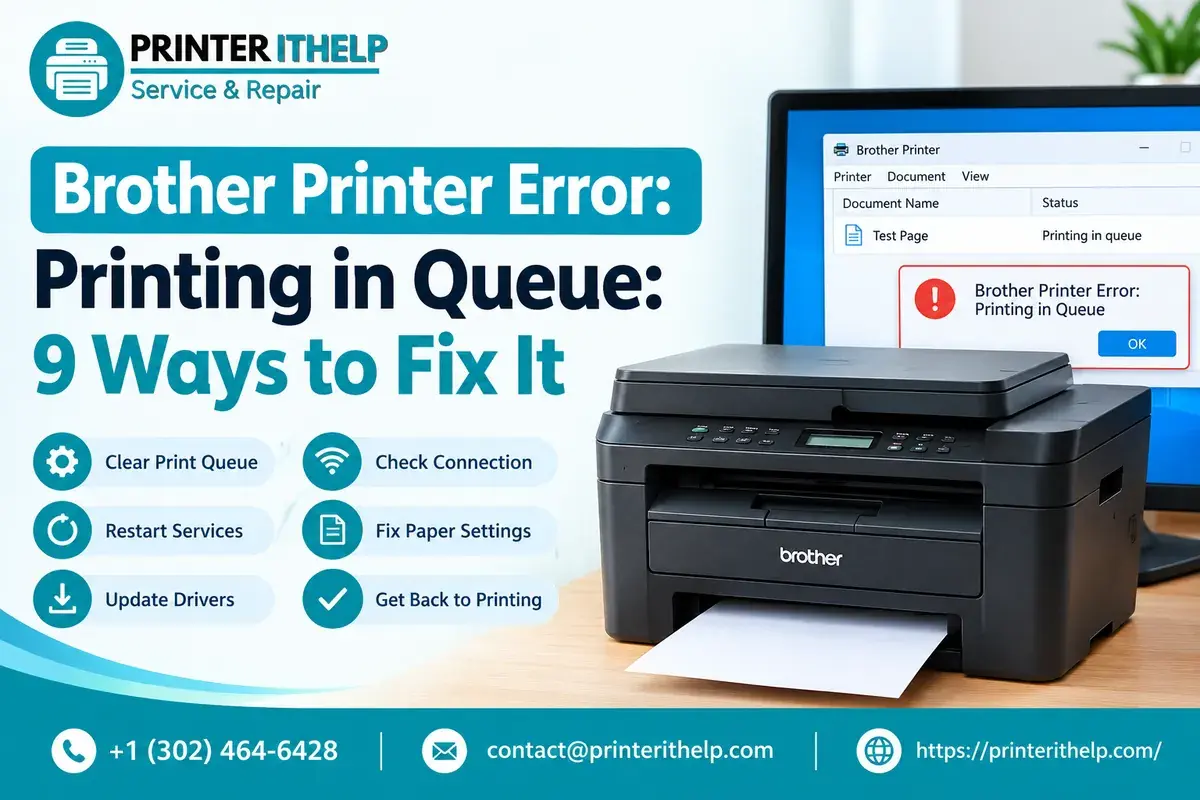
When your printer encounters a Brother printer error: Printing in Queue while using your Windows PC, it may not work correctly, delay the documents, and fail to finish the job. It may occur due to a temporary connectivity issue, old drivers, wrong settings, or a jammed document. There are also several ways to fix the problem yourself. Go through these nine ways to find the cause and make your Brother printer functional.
Why Do You Experience a Brother Printer Print Queue Error?
The print queue stores all documents that need to be printed. If one document is damaged, the rest may not proceed with the process. Here are some problems that occur if your Windows computer does not connect to the printer or the print spooler service.
This could be due to poor WiFi connectivity, a damaged USB cable, incorrect paper settings, obsolete printer drivers, or corrupt temporary files. It becomes easier for you to resolve the problem if you know the cause.
1. Check Your Printer Connection
First, you need to see whether your Brother printer is well-connected or not. If you are using a USB cable, you should disconnect it and properly reconnect it. If the problem persists, you should try another USB cable.
In case you have a wireless printer, you should make sure that your computer is well connected to the correct network, and you will be required to restart your router in case of poor connection.
Lastly, check for any message from the printer screen regarding paper jamming.
2. Restart Your Brother Printer and Computer
A simple restart can resolve temporary printing problems. Turn off your Brother printer and disconnect its power cable. Shut down your computer as well.
Wait about 30 seconds before reconnecting the printer and turning it on. Restart your computer and try printing a test page.
This method refreshes the connection between Windows and your printer. It can also clear temporary errors that prevent documents from moving through the print queue.
3. Cancel Pending Print Jobs
Sometimes, a stuck Brother printer job prevents other documents from Printing. Removing the pending jobs can help restore normal Printing.
Follow these steps:
- Open the Windows Start menu and select Settings.
- Choose Bluetooth & devices, then Printers & scanners. In Windows 10, open Devices and select Printers & scanners.
- Select your Brother printer.
- Open the print queue.
- Right-click any pending document and select Cancel.
Wait until the jobs disappear. If a document won't cancel, move to the next method instead of repeatedly clicking Cancel.
4. Restart the Print Spooler Service
The Print Spooler is a Windows service that manages printing tasks. Restarting it can resolve queue errors and release documents that are no longer progressing.
To restart the service:
- Press Windows + R on your keyboard.
- Type services.msc and press Enter.
- Find Print Spooler in the list.
- Right-click it and select Restart.
- Wait a few seconds and try Printing again.
If the service is stopped, select Start instead. Avoid changing other service settings unless you know they are required.
5. Clear the Windows Print Queue Manually
If documents stuck in the queue remain visible after cancellation, clearing the temporary spool files may help.
First, open the Services window and stop the Print Spooler service. Next, open File Explorer and enter this folder path in the address bar:
C:\Windows\System32\spool\PRINTERS
The user might require administrative rights to get access to the folder. Delete the files located in the PRINTERS folder; however, do not delete the folder. These are spool files, and hence the user should ensure that the service is stopped before deleting the files.
Go back to Services, right-click on Print Spooler, and select Start. Now, go to the printer queue and print a sample file.
6. Set Your Brother Printer as the Default Printer
The computer can direct the documents to go to a different printer or even a virtual one rather than the Brother printer.
To ensure that your document prints successfully, you should ensure that your printer is set as the default printer.
Navigate to the Settings menu and click on Printers & scanners. Click on the Brother printer and click on Set as Default if the button is available.
Alternatively, if your computer automatically sets your default printer, you may have to disable the feature first before setting the default printer.
7. Update or Reinstall the Printer Driver
In case the printer driver is outdated or faulty, your computer will be unable to communicate with the printer. If the problem with the print queue persists despite the deletion of pending print jobs, the driver needs to be checked.
Go to the official Brother website and find the particular printer that you have. Download the right driver for your Windows operating system and computer configuration.
Install the driver according to Brother's guide. In case of reinstalling the driver, make sure to delete the printer in Windows first. The use of unofficial websites to download a driver increases the possibility of having the wrong software installed.
8. Check Paper and Manual Feed Settings
If your printer displays a paper warning, inspect the paper tray and confirm that paper is loaded correctly. Remove curled, damaged, or incorrectly positioned sheets. Check for small paper scraps if a jam warning appears.
If the error message "manual feed" comes up on a Brother printer, the reason could be that the print job requires paper from the manual feed, yet there is paper present in the default tray. Check the printer preferences and change the source of the paper and the size.
The paper in the printer should coincide with the settings of your document.
9. Remove a Print Job That Refuses to Delete
Occasionally, a Brother printer stuck deleting print job problem occurs because Windows is still processing a document or the Print Spooler has stopped responding.
Open the print queue and try canceling the affected job once. If it remains, restart the Print Spooler service using the steps above.
If necessary, stop the service and clear the temporary spool files as described in Method 5. Start the service again and check whether the queue is empty.
After completing these steps, print a simple text document to test the result. Avoid sending several large files until the printer works normally.
How to Avoid Brother Printer Queue Problems
Performing routine maintenance will decrease the possibility of encountering future printing problems. Ensure that your printer driver is updated, use a stable connection like USB or Wi-Fi, and set your paper options correctly before Printing.
While you are sending more than one document, give your printer time to process every document sent. Stop sending unnecessary documents by canceling them instead.
For future Brother printer queue problems, the first thing you should do is to open the Windows Print Queue and cancel the documents in the queue.
You can also review this guide for how to clear the print queue on Brother printer devices running Windows 10 or Windows 11.
Final Thoughts
A problem with the printer queue for the Brother printer will definitely make your day miserable, but you will not necessarily need to install the printer again or replace the hardware. First, check the connectivity between your computer and printer, reboot your printer, clear the documents from the queue, and then reboot the Print Spooler.
This test at each step really makes a lot of difference and can help you determine whether there is an error still persisting. If so, you may contact Printer IT Help as they can assist you in setting up your printer and connecting to it.