Are you trying to connect an HP printer to your newly upgraded Windows 11 but failing to do so? Then you are in the right place. Whether you just purchased a new HP printer or have upgraded your Windows 10 to 11, you no longer need to meddle with complex settings yourself. PrinterITHelp is here to help you.
If you have been a Windows 10 user for a long time, Windows 11 gives a modernized interface that confuses most of the users. From a high-volume office LaserJet to a compact home InkJet, getting a reliable connection between your devices means uninterrupted productivity and no standard configuration headaches from the first page. This article gives you a complete guide on how to connect your HP printer to Windows 11 in no time.
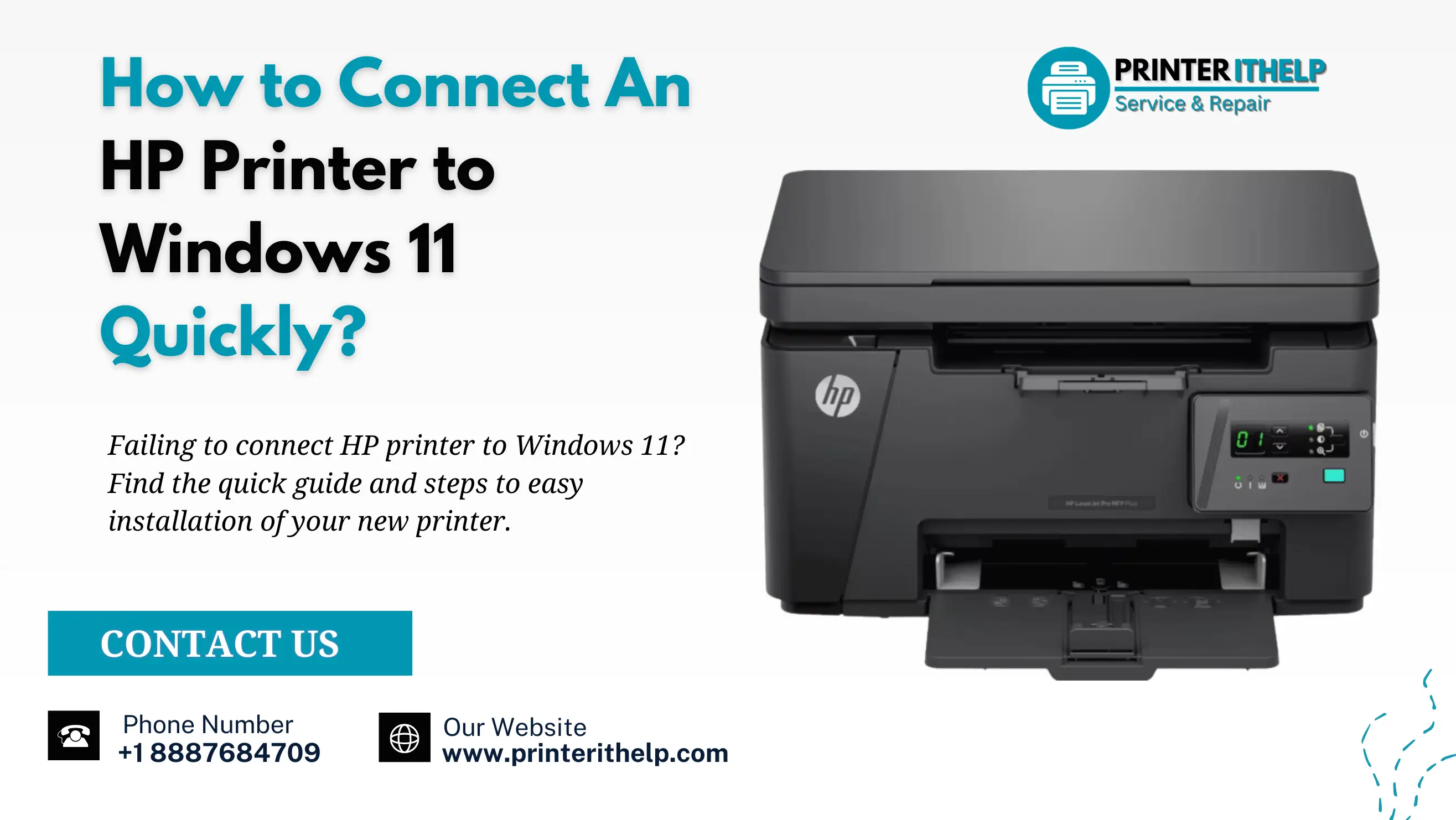
How to Connect An HP Printer to Windows 11 Quickly?
To connect your HP printer to Windows 11, first power on your printer. Also, make sure that the printer is linked to the same Wi-Fi network as your PC or attached directly via a USB cable. Open your Windows 11 Settings by pressing the Windows Key + I, navigate to Bluetooth & devices on the left menu, select Printers & scanners and click the Add device button. Windows will automatically scan your environment, identify your specific HP hardware, and install the necessary default drivers. This entire setup will initiate immediate operation without forcing you to browse through endless manual installation screens.
Pre-Check: Physical Setup Basics
Check out the hardware that’s in your workspace before you touch anything in the Windows environment. Although this may seem unnecessary, be sure to verify that your power cable is securely plugged into your wall outlet and that the associated power indicator light is on. Next, open up the main paper tray, position a neatly stacked pile of paper against the plastic alignment guides, and make sure all ink cartridges are properly seated within their cartridge carriers before proceeding further.
If your device uses a tiny digital screen, look at the top corner to verify that the wireless radio icon is actually turned on. Taking thirty seconds for these physical checks saves a massive amount of troubleshooting time later. Sometimes, a simple loose connection or an open latch is the sole reason a machine refuses to communicate with a computer.
Find Your Printer Through Windows Settings
Microsoft has made changes to the way the peripheral menus look and feel in Windows 11 to make it easier for users to locate their peripherals. You only have to keep in mind that your computer must support the same wireless frequency as your devices and that connecting to your devices only takes a couple of clicks. To start, launch the Settings application then from the left-hand panel, click on Bluetooth & Devices and finally select Printers and Scanners from the resulting window.
Click the blue button to look for devices. Your computer will look for active hardware on your local network. When your specific model name shows up, click Add device, and the operating system handles the background file transfers instantly. This automated background sequence saves you from manually finding port settings or matching complex IP addresses.
Set Up the Official Mobile and Desktop App
If you love having full control over your machine, downloading the official HP Smart app from the integrated Microsoft Store makes a world of difference. Once downloaded, it scans your room, discovers your hardware, and establishes a secure handshake with your home internet router.
The app gives you a clean desktop layout that displays exact ink percentages, provides quick shortcuts for scanning color photos, and lets you print files straight from your smartphone or tablet without any extra configuration. It also serves as a direct pipeline for system notifications, alerting you the moment your hardware needs attention or structural diagnostics.
When Your Wireless Signal Drops Completely
Everybody experiences issues with wireless networks sometimes. It can be extremely frustrating when an HP printer gives you an error message saying it can't connect to your wifi when you're in a desperate rush to complete your work. Power cycling your internet router and your printer could help eliminate any hidden IP address conflicts that are preventing your printer from communicating with your computer.
Also, look at your laptop network bar to ensure it did not accidentally hop onto a restricted guest network. If automated pairing fails repeatedly, go to the printer screen menu and type your security key manually. For stubborn office environments, switching temporarily to a standard USB printer cable can bypass wireless interference completely.
Kickstart Stalled Print Jobs and Empty Queues
One of the biggest productivity killers for an entire afternoon is getting the error message from your HP printer indicating it is not able to print just when you are about to print a very time-sensitive contract. If documents are not printing and have been accepted by your queue, it is usually due to the Windows service known as the Print Spooler becoming confused.
The Print Spooler service can be reset by hitting the Windows key on your keyboard, typing "services.msc" and then hitting Enter. Next, scroll to the Print Spooler and then right-click and select "Restart". This process will delete any errors in the spool (the print job) and then flush the print spool so that it is ready to accept a new print job. Once the service restarts, your pending documents should immediately start sliding into the output tray.
Fix Faded Ink Lines and Crooked Text
Sometimes the wireless signal is perfectly fine, but the pages coming out look faint or messy. If you notice your HP printer not printing correctly, leaving blank streaks across your sentences, or skipping colors entirely, dried ink is likely blocking the microscopic nozzles.
Open your maintenance dashboard to run a quick head-cleaning cycle to clear the blockage. If your sentences look warped or tilted, hop over to the official web portal for factory HP printer support to download the precise driver package tailored specifically for Windows 11 architectures. Keeping your drivers updated prevents your operating system from sending jumbled layout instructions to the hardware.
Force Older Legacy Equipment to Work
Older machinery often speaks a different digital language than modern operating systems, which easily leads to a stubborn Hewlett-Packard printer not printing. If the automated Windows 11 discovery tool keeps ignoring your trusty older model, you do not have to throw it away.
Click the manual addition option at the bottom of the settings screen instead. This path lets you pick an emulated driver from a pre-loaded local directory, allowing you to bypass modern security restrictions and keep using your existing hardware perfectly. It is an excellent way to save money and cut down on electronic waste while keeping a perfectly functional machine in service.
When to Turn for HP Technical Assistance
If you encounter an unusual software conflict that cannot be resolved by going through the regular troubleshooting process, you do not need to go through this process alone. By contacting either the HP printer helpline or using the official HP printer support website, you will have access to both extensive diagnostic utilities and firmware updates. This can be done via automated channels, as well as access to online support technicians via the HP integrated live chat service.
Conclusion
After trying everything, if you are unable to connect your HP printer to Windows 11, no need to worry. We at PrinterITHelp provide quick online printer support to tackle all types of issues whether it is about setup or troubleshooting the HP printer WiFi connections.
Once you have connected with our official HP Printer Help to your internet bookmarks/favorites list, you will be able to quickly find reference tutorials and community-created resolutions. It will solve issues related to HP printers whenever you need assistance in keeping your HP Printer operating properly daily. Using the official HP Printer help site provides you with confidence and reliability in your equipment, keeping it performing as it has been designed to do by the manufacturer.