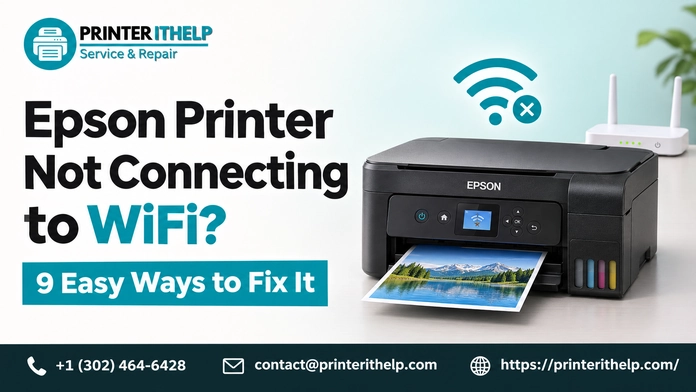
An Epson wireless printer makes printing easier by allowing users to print documents from computers, laptops, and mobile devices without using a USB cable. However, network issues can sometimes prevent the printer from connecting to a wireless router. If your Epson printer not connecting to wifi, you may be unable to print important documents or access wireless printing features.
This problem can happen because of an incorrect WiFi password, weak wireless signals, router problems, outdated printer drivers, or incorrect network settings. Fortunately, you can try several simple troubleshooting methods to restore the wireless connection.
In this guide, we will explain nine practical ways to fix Epson printer WiFi connection issues on Windows 10, Windows 11, and other compatible devices.
Why Is Your Epson Printer Not Connecting to WiFi?
Before trying the solutions, it is helpful to understand what causes wireless connection problems. Some common reasons include:
- Incorrect WiFi network password.
- Weak wireless signals or an unstable internet connection.
- Printer and computer connected to different networks.
- Outdated Epson printer drivers.
- Router configuration problems.
- Temporary printer or router errors.
- Incorrect wireless network settings.
- Unsupported WiFi frequency or security settings.
Identifying the possible cause can help you choose the right troubleshooting method.
1. Restart Your Epson Printer and WiFi Router
Restarting your printer and router is one of the easiest ways to resolve temporary network problems. Sometimes, the printer cannot establish a connection because of a temporary communication error.
Follow these steps:
- Turn off your Epson printer using its power button.
- Disconnect the router from its power source.
- Wait approximately 30 to 60 seconds.
- Reconnect the router and allow it to restart completely.
- Turn on your Epson printer.
- Wait until both devices become ready.
- Check whether the printer connects to your wireless network.
Try printing a test page to confirm that the connection is working.
2. Check Your WiFi Password
An incorrect wireless password is a common reason for connection failures. If you recently changed your router password, your Epson printer may still be using the previous credentials.
If your Epson printer won t connect to wifi, check whether you are entering the correct password.
Here is how to verify it:
- Open the wireless settings on your Epson printer.
- Select WiFi Setup or Network Settings.
- Choose your wireless network name (SSID).
- Enter the current WiFi password carefully.
- Check uppercase and lowercase letters.
- Confirm the settings and wait for the connection.
Avoid entering extra spaces or incorrect characters. If the password is correct, the printer should connect to your router.
3. Make Sure Your Printer Supports the WiFi Frequency
Wireless routers commonly use 2.4 GHz and 5 GHz frequency bands. However, not every Epson printer supports both frequencies.
Many Epson wireless printer models support 2.4 GHz WiFi, while some newer models also support 5 GHz.
If you cannot connect Epson printer to WiFi, check the wireless specifications of your particular model.
Try these steps:
- Open your router's wireless settings.
- Check whether the 2.4 GHz network is enabled.
- Connect your printer to the supported network.
- Make sure you select the correct network name.
- Restart the printer and check the connection.
If your router combines both frequency bands under one network name, check its band-steering settings if the printer has difficulty connecting.
4. Move Your Printer Closer to the Router
Wireless signals can become weak when there are walls, furniture, electronic devices, or other obstacles between the printer and router.
A weak signal may prevent the printer from establishing a stable connection.
If you cannot connect Epson printer to wireless network, try the following:
- Move your printer closer to the WiFi router.
- Keep the router away from thick walls and metal objects.
- Avoid placing the printer near devices that may cause wireless interference.
- Restart the printer after changing its location.
- Check the WiFi signal strength on the printer screen, if available.
A stronger wireless signal can improve communication between your Epson printer and router.
5. Run the Epson Wireless Setup Again
Sometimes, the printer's saved network configuration becomes incorrect or outdated. Running the wireless setup again can help establish a fresh connection.
Follow these instructions:
- Turn on your Epson printer.
- Open the printer's Setup or Settings menu.
- Select Network Settings.
- Choose WiFi Setup or Wireless LAN Setup.
- Select WiFi Setup Wizard.
- Wait for the printer to display available networks.
- Select your home or office WiFi network.
- Enter the correct password.
- Confirm the connection settings.
If your Epson printer can't find wifi, make sure the router is broadcasting its network name and that the printer is within range.
The menu names may vary depending on your Epson printer model.
6. Update or Reinstall Epson Printer Drivers
Outdated or corrupted printer drivers can create communication problems between your computer and printer. Even when the printer connects to WiFi, an incorrect driver may prevent Windows from recognizing it properly.
To update your Epson printer driver:
- Visit the official Epson Support website.
- Search for your exact printer model.
- Select your Windows operating system.
- Download the latest compatible printer driver.
- Open the downloaded installation file.
- Follow the instructions displayed on the screen.
- Restart your computer after installation.
You can also remove the existing printer from Windows and add it again after installing the updated driver.
Installing the correct driver can resolve several wireless printing and communication problems.
7. Check Your Printer's Network Connection in Windows
Sometimes, Windows detects the printer incorrectly or displays an old printer connection. Checking the printer settings can help identify the issue.
For Windows 11:
- Open Settings on your computer.
- Select Bluetooth and Devices.
- Click Printers and Scanners.
- Find your Epson printer in the device list.
- Select the printer and open its settings.
- Check whether Windows recognizes the correct printer.
- If necessary, remove the device and add it again.
For Windows 10:
- Open Settings.
- Select Devices.
- Click Printers and Scanners.
- Select your Epson printer.
- Open Manage.
- Check the printer status and available options.
If your Epson printer cannot connect to wifi, make sure your computer and printer are connected to the same local network.
8. Disable VPN and Check Firewall Settings
A VPN or firewall configuration can sometimes interfere with communication between your computer and wireless printer.
If your Epson printer is connected to WiFi but your computer cannot detect it, check your network security settings.
Try these steps:
- Temporarily disconnect your computer from the VPN.
- Check whether Windows can detect the printer.
- Open Windows Security.
- Select Firewall and Network Protection.
- Review the firewall settings.
- Make sure your printer software is allowed through the firewall.
- Check whether network discovery is enabled on your private network.
Do not permanently disable your firewall or antivirus protection. Instead, create the necessary application permissions when required.
9. Reset Your Epson Printer Network Settings
If none of the previous solutions works, resetting the printer's network settings may help. This removes saved wireless configurations and allows you to configure the connection again.
Follow these general instructions:
- Turn on your Epson printer.
- Open the printer's Settings menu.
- Navigate to Restore Default Settings or Network Settings.
- Select the option to reset network settings.
- Confirm your selection.
- Wait for the printer to restart if required.
- Open WiFi Setup again.
- Select your wireless network.
- Enter the correct password.
After resetting the network configuration, reconnect your printer to the router.
The exact reset procedure depends on your Epson printer model. Check its user manual before performing a reset.
How to Prevent Epson Printer WiFi Problems in the Future
Once your wireless connection starts working, follow these tips to reduce the chances of encountering similar problems again:
- Keep your Epson printer software and drivers updated.
- Use a stable wireless network.
- Avoid changing the router password frequently.
- Place your printer within a good wireless signal range.
- Restart your router occasionally when needed.
- Check your printer's network status regularly.
- Use the correct WiFi frequency supported by your printer.
These simple practices can help maintain a reliable wireless printing connection.
When Should You Contact Epson Printer Technical Support?
If your Epson printer is still not connecting to WiFi after trying all nine solutions, the problem may involve router compatibility, printer hardware, network configuration, or a wireless adapter issue.
Professional troubleshooting may help identify the exact cause and prevent repeated connection failures.
Printer IT Help provides printer setup, wireless connectivity assistance, driver installation, and troubleshooting support for home and business users.
Need help with your Epson printer?
Visit Printer IT Help for technical assistance.
Frequently Asked Questions (FAQs)
1. Why is my Epson printer not connecting to WiFi?
Your Epson printer may not connect because of an incorrect password, weak wireless signals, router problems, outdated drivers, or incompatible network settings.
2. How do I reconnect my Epson printer to WiFi?
Open the printer's Network Settings, select WiFi Setup Wizard, choose your wireless network, enter the password, and confirm the connection.
3. Why does my Epson printer keep losing its WiFi connection?
Frequent disconnections may happen because of weak signals, router interruptions, wireless interference, or outdated network settings.
4. Can I connect my Epson printer to WiFi without a USB cable?
Yes. Most Epson wireless printer models support WiFi setup through the printer control panel or Epson's compatible setup software.
5. What should I do if my Epson printer cannot find my wireless network?
Check whether your router is broadcasting its network name, confirm that the printer supports the selected WiFi frequency, move the printer closer to the router, and run the WiFi Setup Wizard again.