If you encounter an Epson printer paper jam error, you won't be able to print anything. This error typically occurs when paper gets stuck in the printer's feed mechanism, whether you're printing documents, photos, or schoolwork. The good news is that fixing a paper jam in an Epson printer is usually easy. If you're experiencing this error and your Epson printer not printing, fixing the jam may fix both problems.
There are many things that can cause a paper jam, such as loading the paper wrong, rollers that are worn out, or even just dirt that gets stuck inside the printer. This guide will show you step-by-step how to fix the Epson paper jam error, reset the printer, and make sure it doesn't happen again.
Common Causes of Epson Printer Paper Jam Error
Before attempting to fix it, it's helpful to understand what typically causes the error. Knowing these things can help you avoid future jams and keep your printer working properly.
How to Clear Epson Printer Paper Jam Error:
If you see an error stating that your Epson printer paper jam error, don't worry. Follow these simple steps to safely clear the jam and get your printer working again.
1. Turn Off and Unplug the Printer
To be safe, always turn off and unplug your printer before starting. This will prevent you from accidentally turning on the printer while working on the paper path.
2. Open the Paper Tray and Access Door
Next, open the printer door and paper tray. These are usually easy to find, but they may be in different locations on different models. Once opened, you should be able to see the paper path where the jam occurred.
3. Remove the Jammed Paper
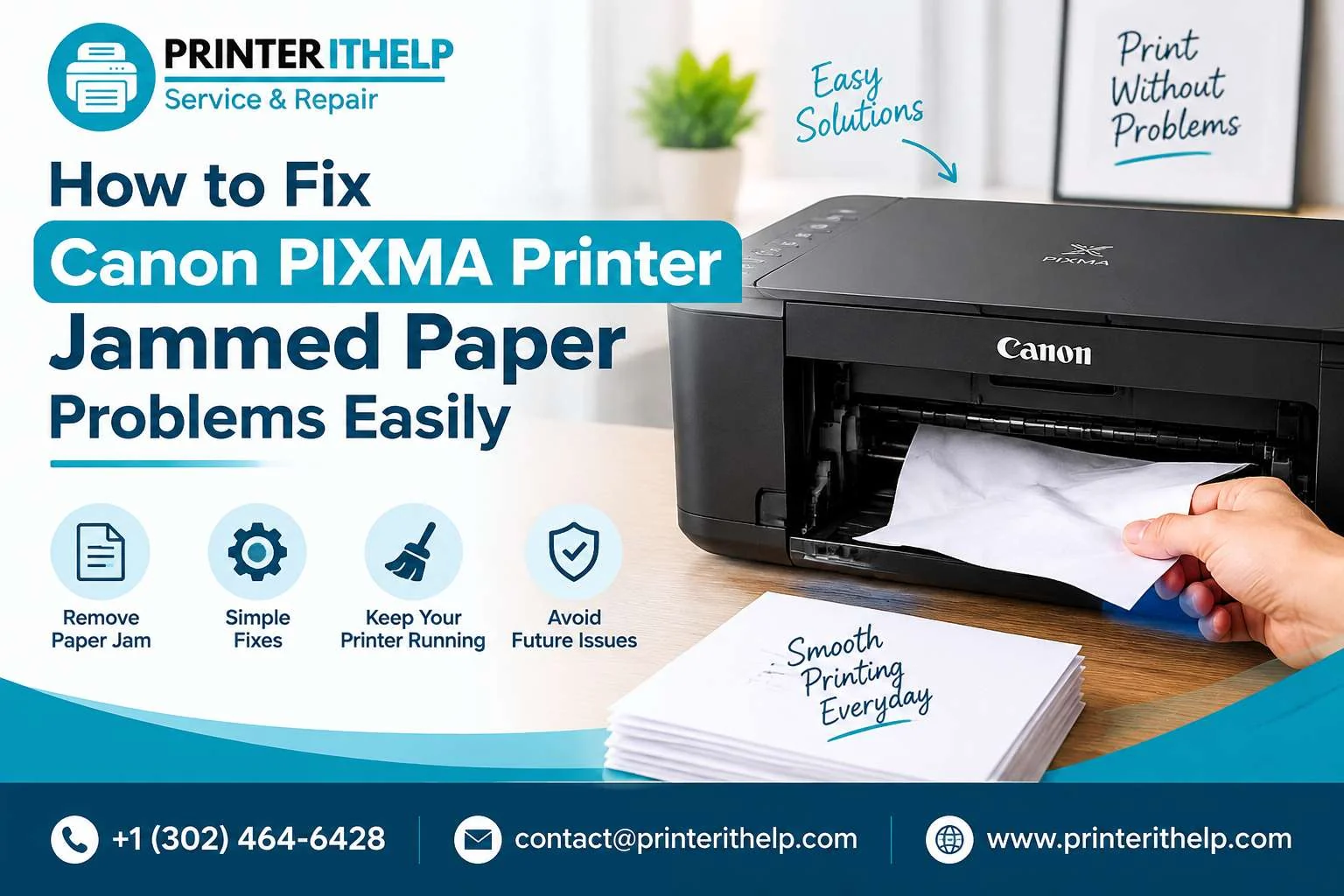
Gently remove paper stuck in the paper tray or printing path. Be careful to remove the paper carefully and straight to avoid tearing it inside the printer, which could leave behind pieces of paper.
If the paper is stuck deep inside the printer, carefully pull it toward you, keeping it aligned with the feed mechanism. If the paper does tear, be sure to remove all pieces from the rollers and paper path to prevent this from happening again.
4. Check for Obstructions
After removing the paper, check for any small objects or debris blocking the paper feed path. Small pieces of paper or dust can sometimes prevent the printer from working. Remove any objects that are in the way.
5. Clean the Rollers
If the rollers appear dirty or sticky, use a soft, lint-free cloth or cotton swab dampened with distilled water to clean them. To ensure smooth paper movement, you should clean all the rollers that touch them.
6. Perform an Epson Paper Jam Reset
Once the paper jam has cleared and everything is clear, it's time to reset the printer. Some Epson printers require a reset after a paper jam to ensure the system recognizes that the error has been fixed.
To reset your printer:
- Unplug it for 30 seconds.
- Plug it back in and turn it on.
- If your printer has a reset button or option in the menu, use that to complete the reset process.
This will help your printer “recognize” that the issue has been resolved.
7. Test the Printer
After clearing and resetting everything, try printing a test document. This will ensure that the Epson paper jam error is fixed and the printer is working as expected.
What to Do If the Epson Paper Jam Error Persists?
If the paper jam error persists after clearing the jam, there may be a more serious problem that needs to be fixed. You can then:
1. Check the Paper Tray Again
Make sure the paper tray is aligned correctly and doesn't have excess paper. Check for excessive folding or tearing.
2. Try a Different Paper Type
If you're using thick, glossy, or odd paper, try using regular printer paper to see if that fixes the problem..
3. Update Your Epson Printer Drivers
If the paper jam error keeps recurring and your Epson printer isn't printing, there may be a driver problem. Sometimes, outdated or corrupted drivers can prevent the printer from recognizing paper or performing its job properly. To fix this, you'll need to install Epson printer drivers that are compatible with both your printer and your operating system. This will keep things running smoothly and fix any software or connectivity issues.
4. Reset the Print Spooler
You might need to reset the print spooler if the error keeps happening after you clear the jam. The print spooler is in charge of print jobs, and if it gets stuck, it can stop printing.
5. Seek Professional Help
If nothing else works, you should call Epson's professional support. Sometimes, problems inside the house, like broken sensors or electrical problems, need the help of an expert. Reach out to Epson printer support for guidance or a technician visit.
How to Prevent Future Epson Printer Paper Jams
Preventing paper jams in the future is easy with a bit of routine maintenance and care. Here are some tips:
- Regularly clean the rollers to remove dust or ink buildup.
- Use high-quality, compatible paper recommended by Epson to avoid paper mishaps.
- Don’t overload the paper tray. Always use the correct amount of paper as specified in the printer’s user manual.
- Store your paper properly to avoid warping or curling.
- Perform regular printer maintenance, including cleaning and checking for software updates.
How to Connect Epson Printer to MacBook
If you’re using a MacBook and need to ensure your Epson printer is connected properly, it’s crucial to ensure the setup is done correctly to avoid any communication issues that could lead to printing problems. To connect your Epson printer to your MacBook smoothly.
Conclusion
Fixing an Epson printer paper jam is easy, but you need to pay attention to detail and use the right methods. If you follow the steps above, you'll be able to safely remove the jam and return your printer to normal. Taking care of your printer, handling paper properly, and using ink cartridges that are compatible with your printer can all greatly reduce the chance of paper jams in the future.
If the problem recurs, make sure your printer always has the latest drivers and software. If you need help, you can call Epson printer support for professional assistance. If you take care of it and know how to fix problems when they arise, you can keep your Epson printer running smoothly for years to come.


 (1).jpg)