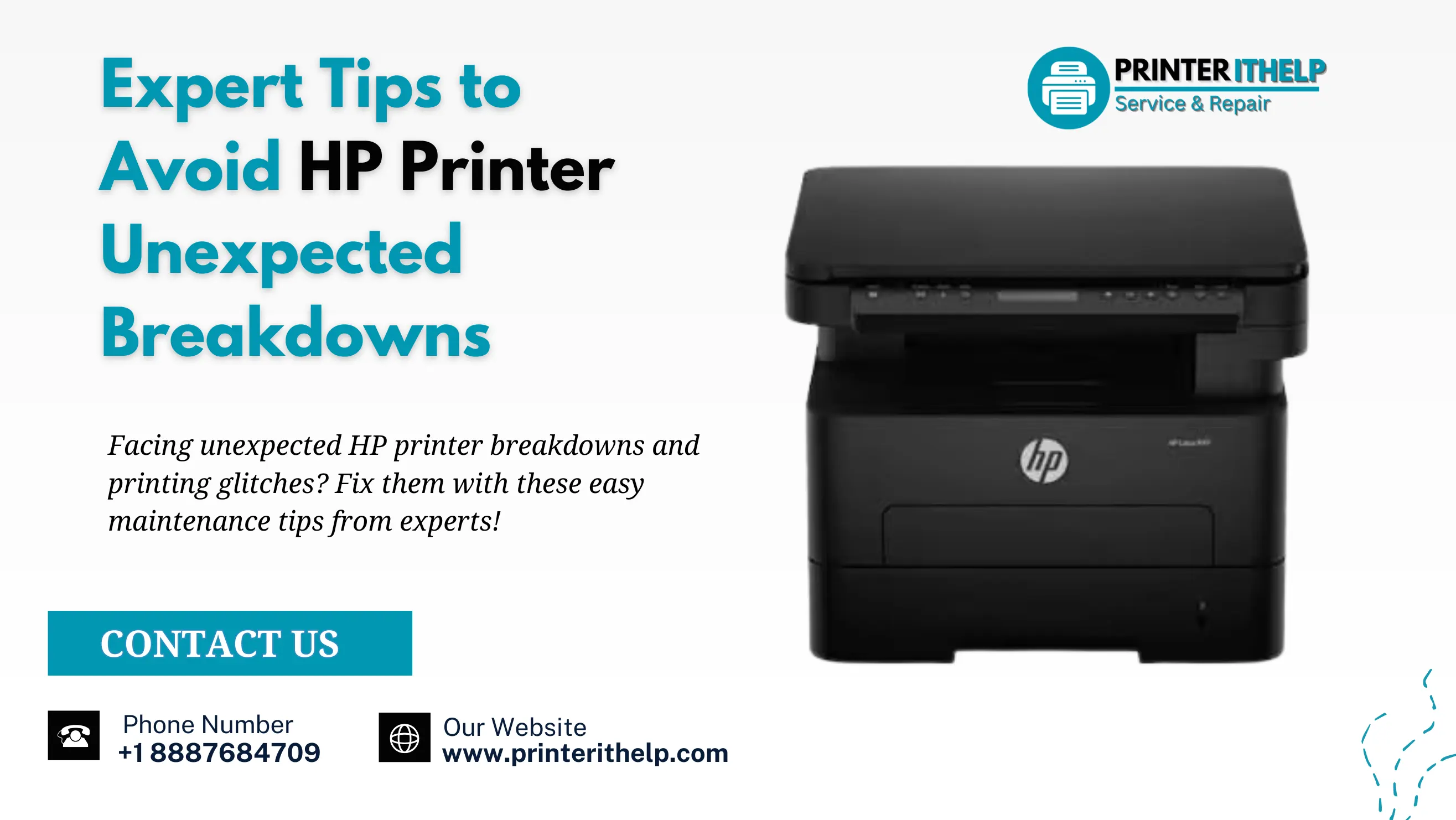
A printer that runs smoothly one day may stop working unexpectedly, and you may have no idea what happened which is where expert tips from PrinterITHelp come in handy. A lot of times, it occurs due to a bad paper jam where sheets get collapsed up deep inside the internal wheels. Other times, it is a sudden network glitch where your computer suddenly acts like the device is completely offline.
These sudden failures will also spoil your daily work if your print quality suddenly turns out to be poor. Your HP printer may not be printing properly due to the dust in the nozzles or printing part misalignments. These issues are not too complex to solve but due to a lack of regular cleaning, outdated drivers, and incorrect printer settings. But you don't need to head on yourself; we are here to help with expert tips.
Tips to Avoid Unexpected Printer Breakdown
Wipe down the paper feed tracks
Tiny paper dust and airborne lint are the biggest enemies of your machine which often causes paper jam issues in the printer. This is invisible dirt that we are unable to notice and it silently builds up on the rubber rollers and sensors over time. The problem is only visible once the machine tries to grab too many sheets of paper at once and jams the printer.
To avoid this, clean the main door once a month with a dry, lint-free cloth. Maintaining those tracks means the internal parts can go back and forth without any major jamming before it even has a chance to happen.
Skip the cheap imitation inks
Most of the time, users purchase cheap ink cartridges online to save a couple of bucks. However, the worst thing you can do is use poor supplies which will cause your HP printer to stop printing altogether. Cheap inks tend to be of the wrong thickness, causing them to dry very quickly and fill the small nozzles, or even leak all over the interior circuit boards. When you purchase quality supplies, the fluid circulates through the machine properly and won't choke it in the middle of a critical job.
Let the software updates run
The modern printing machine is actually a small computer that has its own operating system. The manufacturer releases updates on a regular basis to address software glitches, security flaws and ensure that the machine functions optimally with new software updates from the computer. Failure to install these firmware updates for too long means that the computer may lose recognition of the device completely. Simple to make all the settings talk nicely without any picking up and dropping is to turn on automatic updates in your settings.
Print something once a week
It is a wise idea to leave an inkjet system unused for an entire month. If ink does not move around, it will naturally start to dry and form into a crusty block within the narrow channels. If you haven't used the machine in a while, make sure to print a little, colorful page at least once a week. This handy task will ensure the fluids are moving, the printhead remains moist, and you will not be in a mess where you discover that your HP printer is not printing as needed just before the deadline.
Use the actual power button
The most common mistake that causes an unexpected breakdown in HP printers is pulling the plug from the wall. You should never turn off your machine this way. Instead, always use the actual power button on the front panel which easily moves the sensitive print head to an especially designed protective dock. This stops the remaining ink on the tips from drying out overnight, which is why so many people face an HP printer not printing the next morning properly.
Match your paper settings online
Take two seconds before sending a large job over to the queue before you check the print settings on your screen. If the wrong paper is inserted into the tray, the computer can heat and press the paper incorrectly such as when using heavy photo paper when it is actually thin standard paper. Ensuring digital setting is the same as the paper setting helps prevent the rollers from slipping, prevents early burnout of the heating components, and helps to ensure that the ink will look sharp.
Move it away from the wall
It may look gimmicky at first place but printers get pretty warm when they are working hard and if they are kept near the wall, they even get warmer due to heat absorption from the wall as well. Especially laser models that have to melt toner powder right onto the page.
If you compress the printer into a tight cabinet or jam it flush against a wall, the air vents get blocked and all that heat gets trapped inside. Over time, this extra heat degrades the plastic gears and can cause the main board to fail without warning. Give your machine room to breathe on all sides so it can stay cool.
Professional Assistance at printerithelp.com
Even if you do everything right, there are still going to be days when a tech problem completely breaks your workflow. When your wireless network resets or a weird error code keeps popping up on the screen, trying to guess the fix on your own can waste hours of your time. That is exactly why having access to professional HP printer assistance makes such a massive difference. Our team at PrinterITHelp offers fast, reliable online printer support to get your machine back up and running without all the usual stress.
We operate as a full online printer support provider with a staff of real technicians who know how to handle tough hardware errors and messy software conflicts. It does not matter if you are trying to get the machine connected to a brand-new router, fixing driver glitches, or wondering why your text is coming out light and faded.
Conclusion
Keeping your printing setup functioning well should not be considered as extra work but a routine job. By turning these seven basic maintenance tips into a quick routine, you can easily protect your gear from breaking down early, save money on repairs, and get clean pages every time you print. Taking a tiny bit of proactive care is always going to be way cheaper and much less painful than dealing with a completely dead machine when you are stressed out over work.
If your machine is acting up right now, showing strange lights, or just refusing to work no matter how many times you restart it, do not sit there getting frustrated. Contact us now by visiting printerithelp.com to check out easy troubleshooting guides, or call us at +1 8887684709 for prompt help.