When updating your HP Windows device or when it is getting updated on its own, you may come across the download error 0x8024200b: Windows Update encountered an unknown error. If you are not tech-savvy, you might be completely unaware of this error but it can be due to missing hardware like a printer or driver update issues that sometimes automatically run in Windows. Other than that, some HP printer users state that they get the error code 0x8024200b whenever they attempt to change the HDD to an SSD.
This article covers the exact causes of this error. The good thing is that you can easily fix the HP printer installation error 0x8024200b following the steps given below. However, it is essential to first find out the reason for this '0x8024200b' error message. This article gives you a comprehensive guide on this driver installation error and the way to resolve printer install error 0x8024200b in Windows.
What is Download Error 0x8024200b in HP Printer Installation?
0x8024200b is a Windows update or download error that occurs when you try to update or install the driver for an HP printer. The error 0x8024200b is known as a hardware driver installation failure that occurs automatically in the background when Windows attempts to update. It can also be triggered by missing or hidden hardware like a printer, rather than a broken operating system update.
The 0x8024200b error may appear on its own when the system performs a built-in update or when you try to install a printer. However, when you attempt to install the operating system update, you will see the following error displayed in the updates and security settings:
There were problems installing some updates, but we'll try again later. If you keep seeing this and want to search the web or contact support for information, this may help:
Definition Update for Windows Defender - KB2267602 (Definition 1.231.531.0) - Error 0x8024200B
On some Windows devices, you can see the error like: Download error x8024200B
In this error, Windows is supposed to be connected to an external device like an HP printer. Even if you already have an old printer that isn't plugged in or installed, Windows Update may attempt to download a driver update for that printer. This error is thrown if the update tool cannot find the actual device connected to your PC with which you are to apply the update.
If an HP printer is not connected to WiFi or is sleeping and Windows runs an update silently, you will get 0x8024200b error. There may be many more reasons why your HP printer installation is showing the 0x8024200b error but the above are the most common. Let’s discuss now how to fix 0x8024200b error in an HP printer.
How to Fix 0x8024200b HP Printer Install Error
The most effective ways to fix download/install 0x8024200b error are removing the old printer, eliminating corrupted files, manually updating the system, restarting the computer and printer, etc. But if your HP printer is offline or if your computer has a "mixed-up" memory of an old printer that you used some time ago, Windows is confused. It attempts to print a file to a printer that it cannot find, enters a loop and presents the error code 0x8024200b. Here are some of the solutions to rectify the error:
Remove Any Old Printer Connected
The straightforward method to fix 0x8024200b is to remove any old HP printer ever connected to your computer. Your computer may be attempting to update an old print driver, which may not exist. In order to rectify this, look at the search bar at the bottom of the screen and type in "Device Manager" and once it appears, click it.

The window in Figure 1 will appear after clicking on the computer parts window. After clicking on the computer parts window, the window in Figure 1 will open up. Click on the small arrow to the right of the word "Printers" to view all the printers. Anything that has a yellow warning sign "Unknown Device" will be right-clicked and uninstalled. This will delete all old and corrupted files that were causing Windows to show an error 0x8024200b message on the PC.
Eliminate the Corrupted Files
This is the simplest way and most effective way to fix the 0x8024200b error in Windows Update or printer installation. Search for the words Command Prompt in your Windows search bar. A black window will open up to type a command. Type net stop wuauserv and press the Enter key on your keyboard to temporarily pause your updates as shown in Figure 2.
Now, open your normal desktop folders and look for the This PC option, then open your C: drive. Open the folder named Windows. Inside the Windows folder, you will see a subfolder named SoftwareDistribution. This is just a temporary trash folder where the broken HP file is stuck. You need to delete all the files inside this. Once you empty it, restart your computer, and Windows will start fresh without the error.
Let Windows Fix Itself
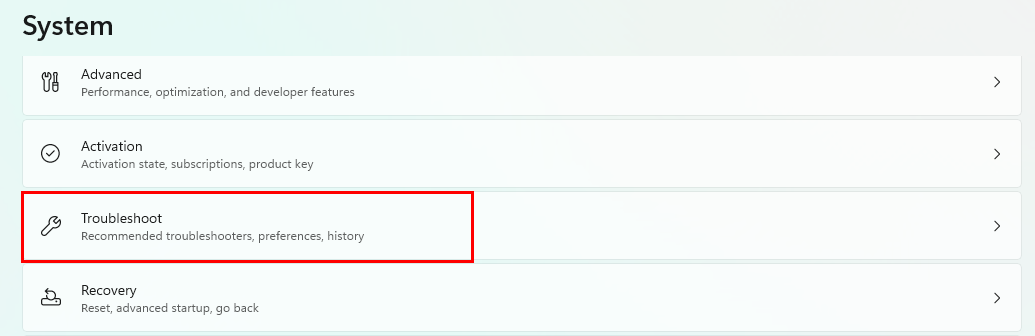
Windows has a built-in assistant that can find and fix update issues for you automatically. Click on your Start button (the Windows logo at the bottom of your screen) and open the Settings app. Inside Settings, click on System, then scroll down and click on Troubleshoot as in Figure 3.
Next, click on Other troubleshooters. You will see a list of items; look for Windows Update and click the Run button right next to it (Figure 4).
A window will pop up and look for the stuck HP printer file, and it will try to fix the background updating system for you.
Install the Update Manually
Sometimes Windows gets stuck while it downloads the file. Instead, if Windows tries to do it itself and shows a download error 0x8024200b, you should manually update the system to avoid the error. Search for the Windows Update History in the computer search bar to see the exact name of the update that is failing (Refer to Figure 5 below). It usually starts with the letters KB followed by a string of numbers.
You should launch your browser, visit the website known as Microsoft Update Catalog, and enter the KB number into the search field. After that, click the download link for the update corresponding to your computer, and once the update has been downloaded, open it and wait for it to finish installing on your computer. Thus, you will easily resolve any “error” issue in Windows for whatever reason; instead, install the faulty update again.
Reset Your Windows System
If your computer is completely stuck and nothing else fixes the printer error, the time has come to reset your system safely without losing your personal data. It should be understood that this process is not the same as a hard reset that wipes out your data. It is a way of easily fixing the installation issue which is error 0x8024200b in Windows 11 for your HP printer. First, you should click the Start button at the bottom of your screen. Next, go to Settings and find System. Scroll down until you reach Recovery and choose it. The last step is to search for the button called "Reset this PC" and click the Reset this PC option (see Figure 6).
In the next step, you will see the pop-up window that asks you to confirm this operation, but don’t forget to select the option that says "Keep my files." That is how your photos and documents will be kept safe while the system details needed for the Windows operation will be updated.
A Bonus Tip: Connect Online Printer Support
This is completely normal if you followed all the fixes above and are still facing the download 0x8024200b error in Windows when installing HP printer. The best solution is to get help from online printer support that guides you through every step of how to fix the error. At PrinterITHelp, our experts are available 24/7 to resolve your printer-related issues, whether they are driver updates, printer offline issues, or other technical support for all printer brands.
If you are unable to download or update your Windows software or fail to find the exact setting where you can fix the issue, printer support from an independent service provider is a huge benefit. So, instead of waiting a long time for your issue to resolve, get online help from PrinterITHelp or connect a call at +1 8887684709 with us.