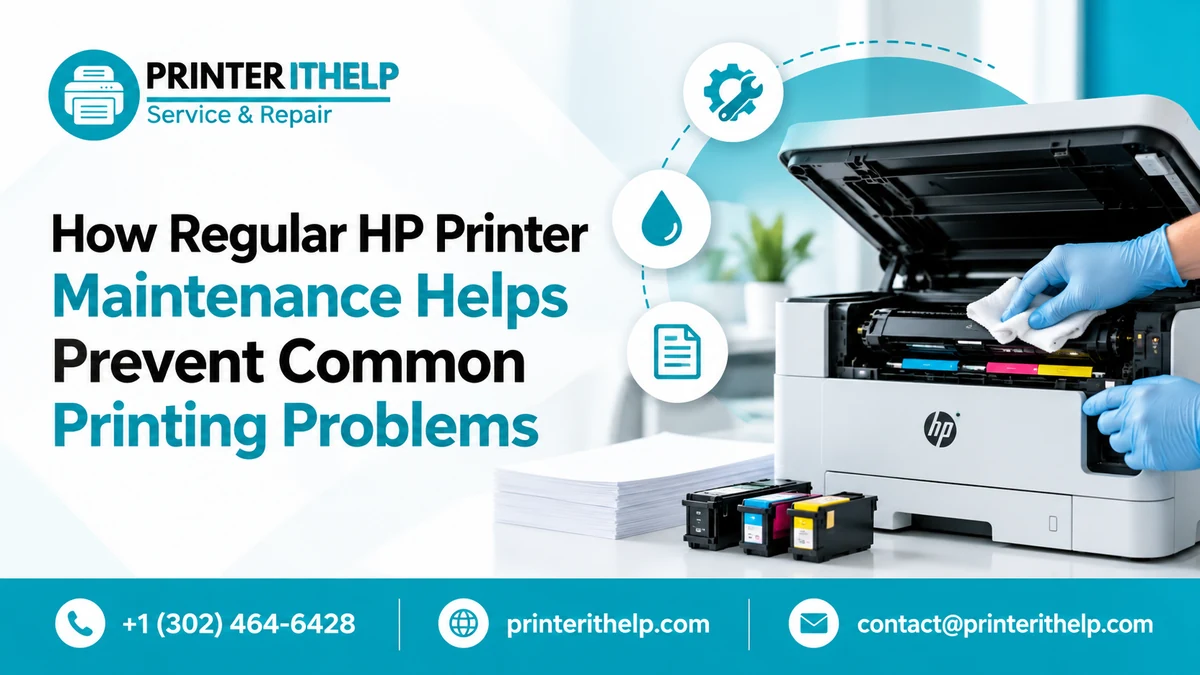
Regular HP printer maintenance keeps your printer running smoothly, improves print quality, and prevents common problems such as paper jams, faded prints, connection errors, and slow printing. Dust, incorrect paper loading, outdated drivers, and low ink or toner levels can affect printer performance over time. Simple maintenance steps can help prevent these issues, reduce unexpected interruptions, and avoid unnecessary repair costs.
Whether you use an HP printer at home or in an office, caring for your device can help you print documents more reliably. This guide explains how regular maintenance prevents common printing problems and what you can do to keep your printer in good condition.
Why Is Regular HP Printer Maintenance Important?
Printers contain several components that work together to produce documents. These include paper feed rollers, ink cartridges or toner cartridges, printheads in applicable inkjet models, and internal mechanical parts. When these components become dirty, worn, or improperly maintained, printing problems may develop.
Regular cleaning and basic checks help you identify small issues before they interrupt your work. For example, removing dust from accessible areas can reduce feeding problems, while checking ink levels can help prevent unexpected interruptions.
Good maintenance also helps you recognize when a problem requires a driver update, a settings adjustment, or professional repair instead of repeated troubleshooting.
1. Clean Your HP Printer Regularly
Dust and paper fibers can collect around the paper tray, output area, and other accessible parts of your printer. Over time, this buildup may affect paper feeding or leave unwanted marks on printed pages.
Turn off the printer and disconnect its power cable before cleaning the exterior. Use a soft, lint-free cloth to remove dust from the outer surface. Keep liquids away from electrical components and avoid spraying cleaning products directly into the machine.
For internal cleaning, follow the instructions provided for your specific printer model. Do not remove components unless the manufacturer identifies them as user-accessible.
A clean working environment can also help. Place the printer on a stable surface away from excessive dust, moisture, and direct heat.
2. Check Ink and Toner Levels
Low ink or toner levels can lead to faded text, incomplete documents, or interrupted print jobs. Checking the supply levels regularly helps you identify when a cartridge needs attention.
For inkjet printers, review the ink levels through the printer control panel or compatible printer software. If your documents contain missing colors or streaks, check the print quality and follow the recommended diagnostic procedure.
For laser printers, check the toner status and replace the cartridge when necessary. Always use supplies compatible with your printer model.
Avoid replacing cartridges unnecessarily when the actual issue may be a blocked printhead, incorrect settings, or a software problem. Identify the cause before purchasing replacement supplies.
3. Prevent Paper Jams and Feeding Problems
Paper jams are common printing interruptions. They can occur when paper is curled, damp, incorrectly loaded, or unsuitable for the printer. Dust or worn feed rollers may also affect how sheets move through the machine.
To reduce these problems, store paper in a dry place and use sheets that match your printer’s specifications. Align the paper stack before loading it, avoid overfilling the tray, and adjust the guides so they fit the paper without squeezing it.
If a jam occurs, turn off the printer and remove the paper carefully according to the manufacturer’s instructions. Check accessible areas for torn fragments before restarting the machine.
4. Maintain Print Quality
Blurred text, faded colors, streaks, and missing lines can make documents difficult to read. These issues may result from low supplies, clogged printhead nozzles in inkjet models, incorrect paper settings, or worn components.
Start by printing a test or diagnostic page if your printer supports it. Check whether the problem affects every document or only one file. This can help you determine whether the issue relates to the printer itself or the software sending the job.
For compatible inkjet models, use the built-in printhead cleaning tool when print quality problems appear. Print another test page afterward to check the results. Because cleaning cycles consume ink, run additional cycles only when needed and according to the manufacturer’s instructions.
Also verify that the selected paper type and print quality settings match your task. Choosing the correct paper setting can improve results when printing photos or detailed graphics.
5. Keep Printer Drivers and Software Updated
Printer drivers help your computer communicate with the printer. An outdated or corrupted driver may cause printing errors, missing options, slow performance, or communication problems.
Check for compatible software and driver updates through the manufacturer’s official support website or the printer’s supported management application. Select your exact printer model and operating system before installing anything.
If the printer stops responding after a computer update, check the connection and print queue before reinstalling the driver. Remove stuck jobs when necessary and restart the printer and computer.
Keeping the software current can resolve compatibility problems, but updates will not repair damaged rollers or other physical components. Diagnose the issue before making major changes to your system.
6. Check Wi-Fi and USB Connections
Connection problems can make a printer appear offline even when it is powered on. Wireless printers may lose communication after a router restart, network password change, or Wi-Fi configuration change. USB printers may stop responding because of a loose or damaged cable.
For wireless printing, confirm that the printer and computer are connected to the intended network. Restart the printer and router if the connection has stopped working, following the instructions for your devices.
For USB connections, check both ends of the cable and try another compatible port if available. Also verify that the correct printer is selected when sending a document.
If the printer repeatedly disconnects, review the network settings and check for software updates. These basic checks can help restore communication without unnecessary repairs.
7. Schedule Professional Maintenance When Needed
Basic cleaning and regular checks are suitable for many everyday maintenance tasks, but some problems require technical knowledge. Damaged rollers, persistent error codes, unusual grinding noises, and recurring mechanical failures may indicate a hardware issue.
HP Printer Maintenance Services can help users identify problems that are not resolved by routine cleaning or basic troubleshooting. Before arranging a service visit, note the printer model, any displayed error message, and the steps you have already tried.
If you need to contact HP printer support, use the official support website to find the correct assistance options for your location and product. Search for the verified HP printer phone number on the official site rather than relying on unverified third-party contact details.
When seeking help, explain the symptoms clearly. If you need to contact HP printer support, have your model number, operating system, and warranty information ready. This information can help the support representative understand the problem more quickly.
8. Check Installation and Printer Settings
Correct installation is another important part of printer care. Incorrect driver selection, incomplete software installation, or unsuitable settings can cause communication and printing problems.
If you are setting up a new device, follow the manufacturer’s setup instructions. Proper HP printer installation includes connecting the printer correctly, installing compatible software, and selecting the appropriate paper and connection settings.
After installation, print a test page to confirm that the printer works as expected. For wireless models, verify the network connection before sending large documents.
If installation or configuration problems continue, check the official troubleshooting resources for your specific model. Avoid installing software from unknown websites because it may be incompatible or unsafe.
9. Create a Simple Maintenance Routine
A basic maintenance schedule makes it easier to keep track of your printer’s condition. The exact frequency depends on the model, how often you print, and the environment in which you use the device.
Check paper and supply levels regularly. Clean the exterior when dust appears, inspect accessible paper paths when feeding problems occur, and review print quality if documents start showing streaks or faded areas.
For inkjet printers that are rarely used, follow the manufacturer’s recommendations for keeping the ink system in good condition. Do not run printhead cleaning cycles unnecessarily, as they use ink.
Businesses with heavy printing workloads may benefit from more frequent inspections based on usage and the maintenance instructions for their equipment.
Conclusion
Regular printer maintenance can help prevent common printing problems, improve document quality, and reduce unexpected interruptions. Cleaning accessible areas, checking ink or toner levels, loading paper correctly, updating drivers, and verifying connections are practical steps for everyday users.
When basic troubleshooting does not resolve a recurring problem, professional inspection may be necessary. Keeping a simple maintenance routine and following your printer’s model-specific instructions can help your HP printer remain reliable for home and office use.