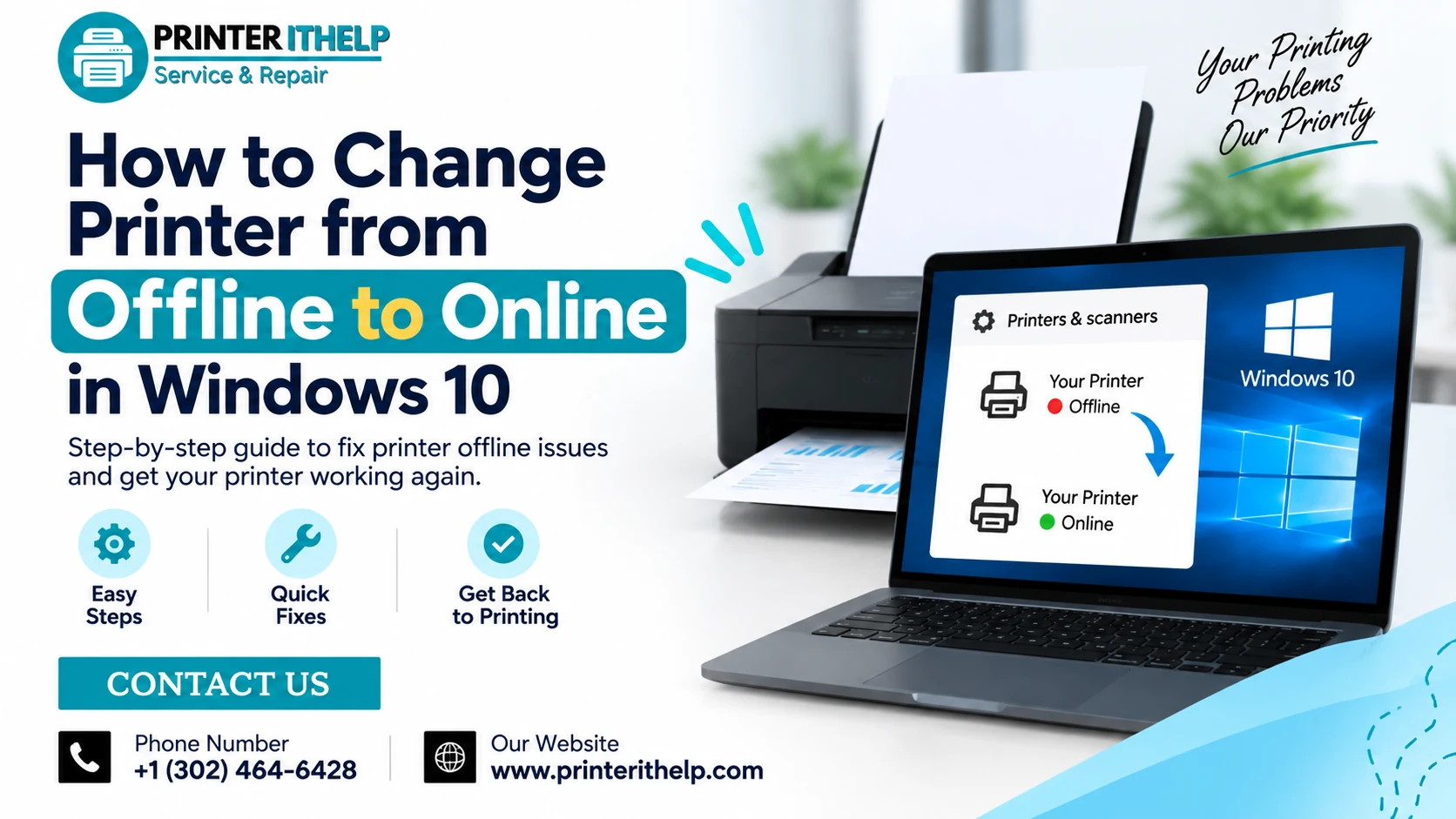
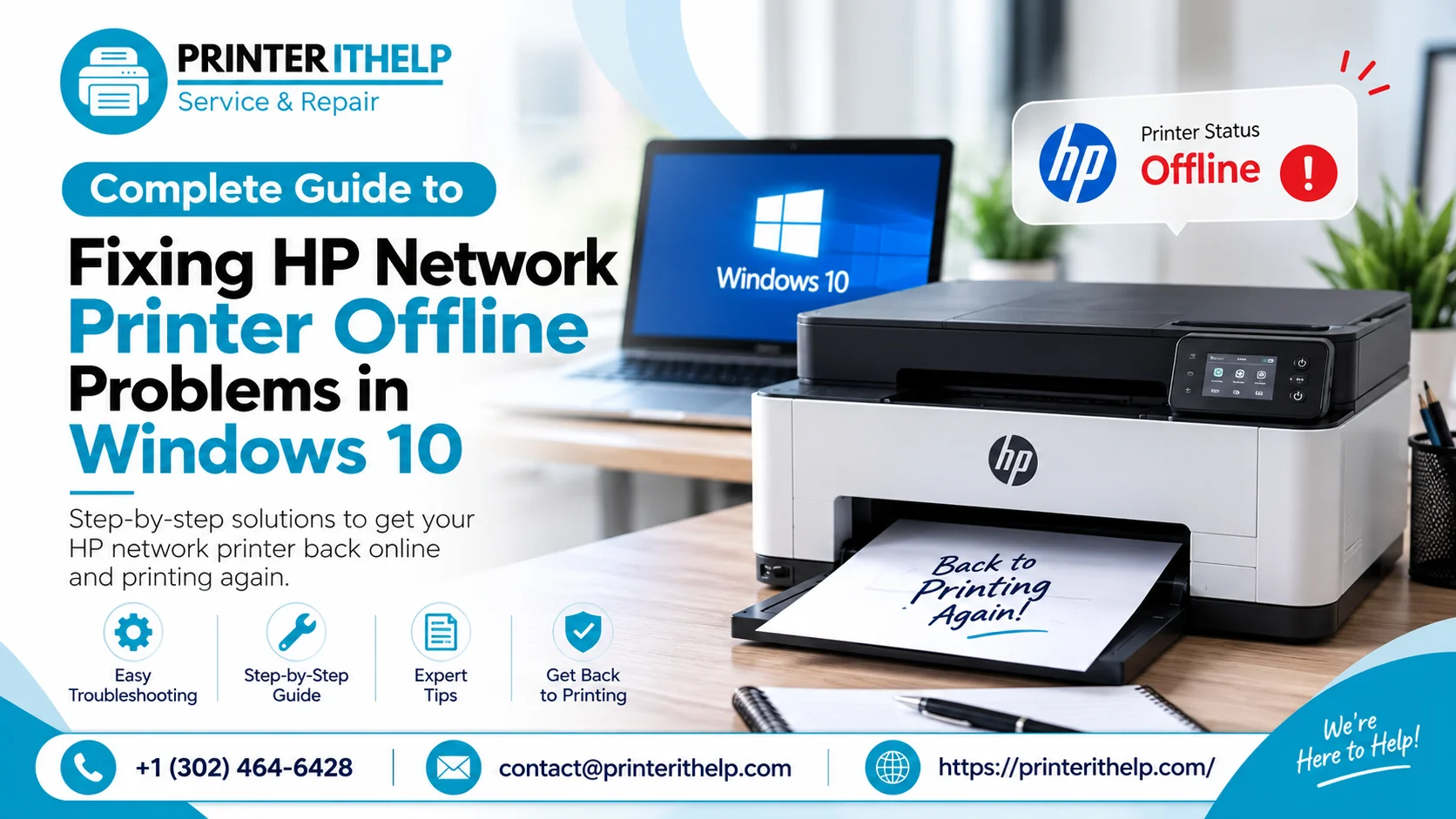
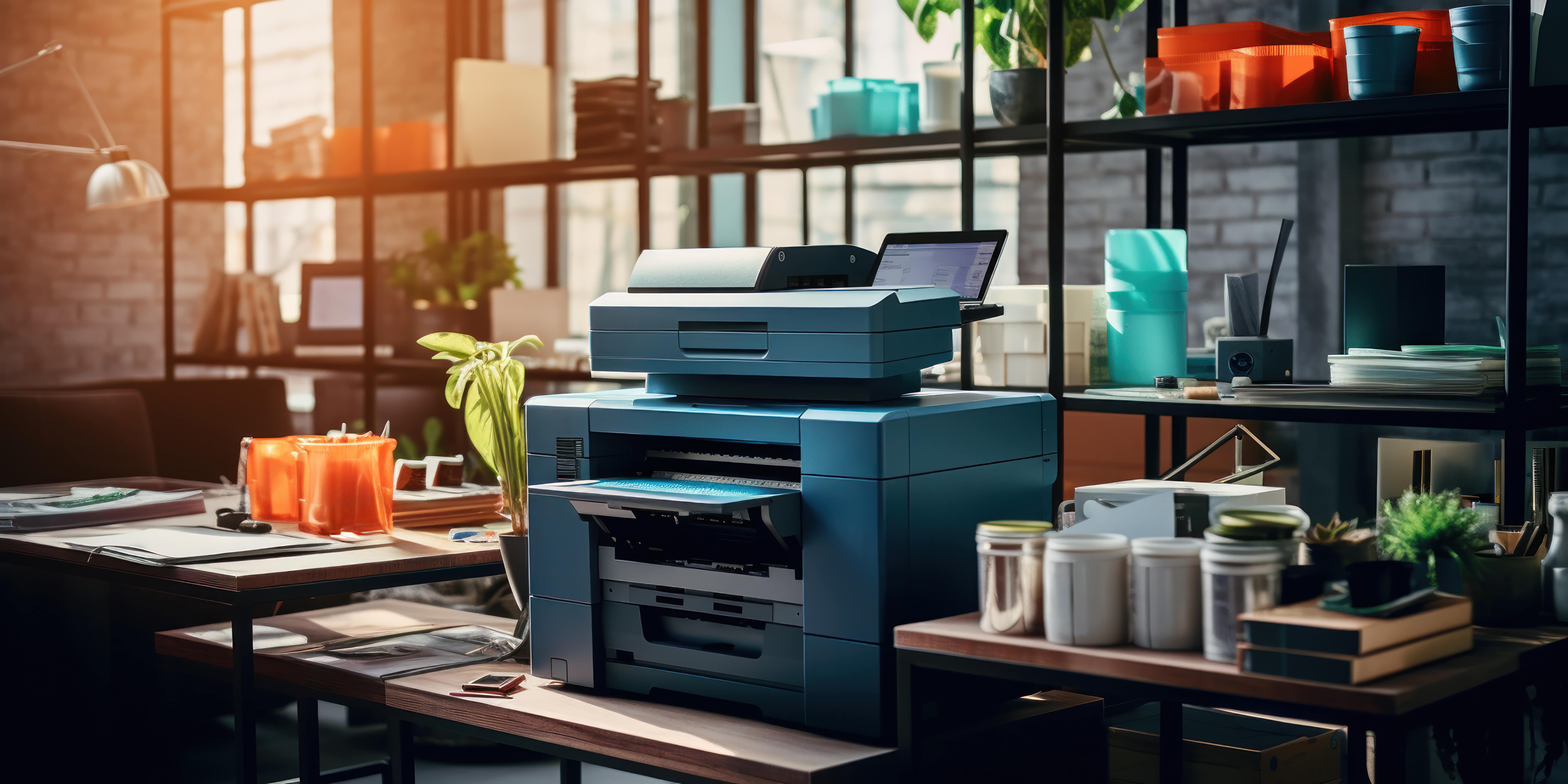
You connect your printer and then you try to print your document, but it fails. You open Windows 10 and find out that your printer is in a state of being Offline, although your printer is actually connected and turned on. This is a common printing problem which occurs when Windows cannot correctly connect to the printer.
The problem may affect USB printers, Wi-Fi printers, and network printers. The reason for such a problem might be quite straightforward like incorrect printer settings, but in some cases, it may occur due to a stuck print queue, network changes, Print Spooler error, and printer driver errors.
To understand how you can switch your printer from being offline to online mode in Windows 10, you should go through the following steps.
Printer Offline Meaning Windows 10
The term "offline" implies that the printer is considered to be unavailable by Windows at the moment for printing purposes.
It doesn't have to mean that something wrong happened to your printer because it might work properly but still show you an offline message in Windows.
Common Reasons Include:
- The printer lost its Wi-Fi connection
- The computer and printer are not on the same network
- “Use Printer Offline” was enabled
- A print job is stuck in the queue
- Windows is using the wrong printer
- Printer driver is not working correctly
- Print Spooler service has stopped responding
- USB or Ethernet connection is interrupted
- Network settings or printer IP information changed
Before reinstalling any programs or modifying any advanced settings, start with the connection first.
Verify Connection of the Printer
First, observe the printer itself. Ensure that the printer is powered on, functional, and not experiencing any errors due to lack of paper, ink, toner, or a paper jam.
In case of a USB printer, remove the USB cable from the printer and then connect it again. Try using another USB port in your computer whenever possible.
In case of an Ethernet printer, ensure that the cable is securely connected.
For wireless printers, check the Wi-Fi connectivity directly in the printer. In case you are using a wireless printer in Windows 10, confirm that your Windows 10 computer and the printer are both connected to the same network.
Turn Off the “Use Printer Offline” Setting
Windows 10 can place a printer in offline mode through its print queue settings. If this option is enabled, your documents may remain waiting even when the printer is available.
To Check It:
- Open Start and select Settings.
- Choose Devices.
- Open Printers & scanners.
- Select your printer.
- Click Open queue.
- Click Printer in the menu.
- Find Use Printer Offline.
- If it has a check mark, disable it.
You should also check whether Pause Printing is enabled. Turn it off if you want pending documents to print normally.
Give Windows a few seconds to refresh the printer status.
Remove Documents Stuck in the Print Queue
Sometimes the printer itself is online, but an old or failed document prevents new print jobs from processing.
Open your printer queue and look for documents that have been sitting there for a long time. Cancel the unnecessary jobs and allow the queue to clear.
After clearing it, turn the printer off, wait around 30 seconds, and turn it back on.
Send a simple test document instead of immediately retrying a large PDF, photo, or multi-page file. This makes it easier to determine whether basic printing has been restored.
Restart the Windows Print Spooler
Windows uses the Print Spooler service to manage documents waiting to be printed. When this service stops or becomes unresponsive, the printer can behave unexpectedly.
To Restart It:
- Press Windows + R.
- Enter services.msc.
- Press Enter.
- Locate Print Spooler.
- Right-click it.
- Choose Restart.
Give the service enough time to restart and see if your printer is now working.
In the case of a spooler error that has been temporary, there is a chance that your printer will become operational without any need for reinstallation.
Check to See That Windows Has the Right Printer
Do you have more than one printer listed in Printers & scanners?
Open:
Settings > Devices > Printers & scanners
Identify the printer you actually want to use.
If necessary, select it and set it as your default printer. Windows 10 may require you to turn off Let Windows manage my default printer before manually choosing a default device.
Try printing again after making the change.
Restart the Printer, Computer, and Router
Restarting devices is particularly useful when an offline status appears suddenly after the printer was working normally.
Turn off the printer and restart your Windows 10 computer.
In case you have a wireless printer, restarting your router may fix the problem. Make sure the network is fully up and running and then switch on the printer.
Also check whether the computer and printer have re-connected to each other.
Check a Network Printer That Keeps Going Offline
Network printers depend on communication through your local network. Changes to Wi-Fi, router configuration, network addresses, or printer settings can interrupt that communication.
A Windows 10 network printer offline problem may therefore continue even though the printer appears connected.
Check the network information displayed by the printer and make sure the device is still connected to the network used by your computer.
If the printer was recently connected to a new router or Wi-Fi network, Windows may need to discover and add it again.
Remove and Reinstall the Printer
When the existing printer configuration no longer works correctly, reinstalling the device can help Windows create a new connection.
Go to:
Settings > Devices > Printers & scanners
Select the affected printer and click Remove device.
After removing it, restart the computer.
Return to Printers & scanners and select Add a printer or scanner. Wait while Windows searches for available printers.
When the correct printer appears, select it and follow the installation instructions.
Update or Reinstall the Correct Printer Driver
Your printer depends on driver software to communicate with Windows.
Driver problems can develop after Windows updates, printer software changes, failed installations, or device configuration changes.
If the printer continues showing offline, check whether the correct driver is installed for your specific printer model.
When downloading printer software, use the official website of your printer manufacturer. Search using the exact model number and select software compatible with your version of Windows.
Installing random driver packages from unknown websites can introduce additional problems and should be avoided.
Why Does My Printer Keep Going Offline?
In case you can get the printer online but the issue recurs, think beyond the offline setting itself.
The cause may be unstable Wi-Fi, the printer going into low power mode, changes to network configuration, issues with drivers, Windows print service, or even having two instances of the same printer.
Note the time when the issue is happening. For instance, is the issue occurring after you restart your computer, after connecting back to Wi-Fi, after waking the printer up, or switching networks?
This can help you identify the actual cause of the problem.
Get Your Windows 10 Printer Working Again
A printer showing offline does not always require complicated repairs.
First, ensure that the physical or wireless connection is working and check the printer settings in Windows. Clear stuck print jobs, restart the Print Spooler, set up your printer as the default one, and reinstall your printer if necessary.
If all these methods don’t work and you’re unable to connect to your printer, then further troubleshooting may be necessary.
Printer IT Help provides assistance for printer connectivity, configuration, setup, drivers, and other printer-related problems. Getting the underlying connection or configuration corrected can help restore reliable printing instead of repeatedly switching the printer back online.