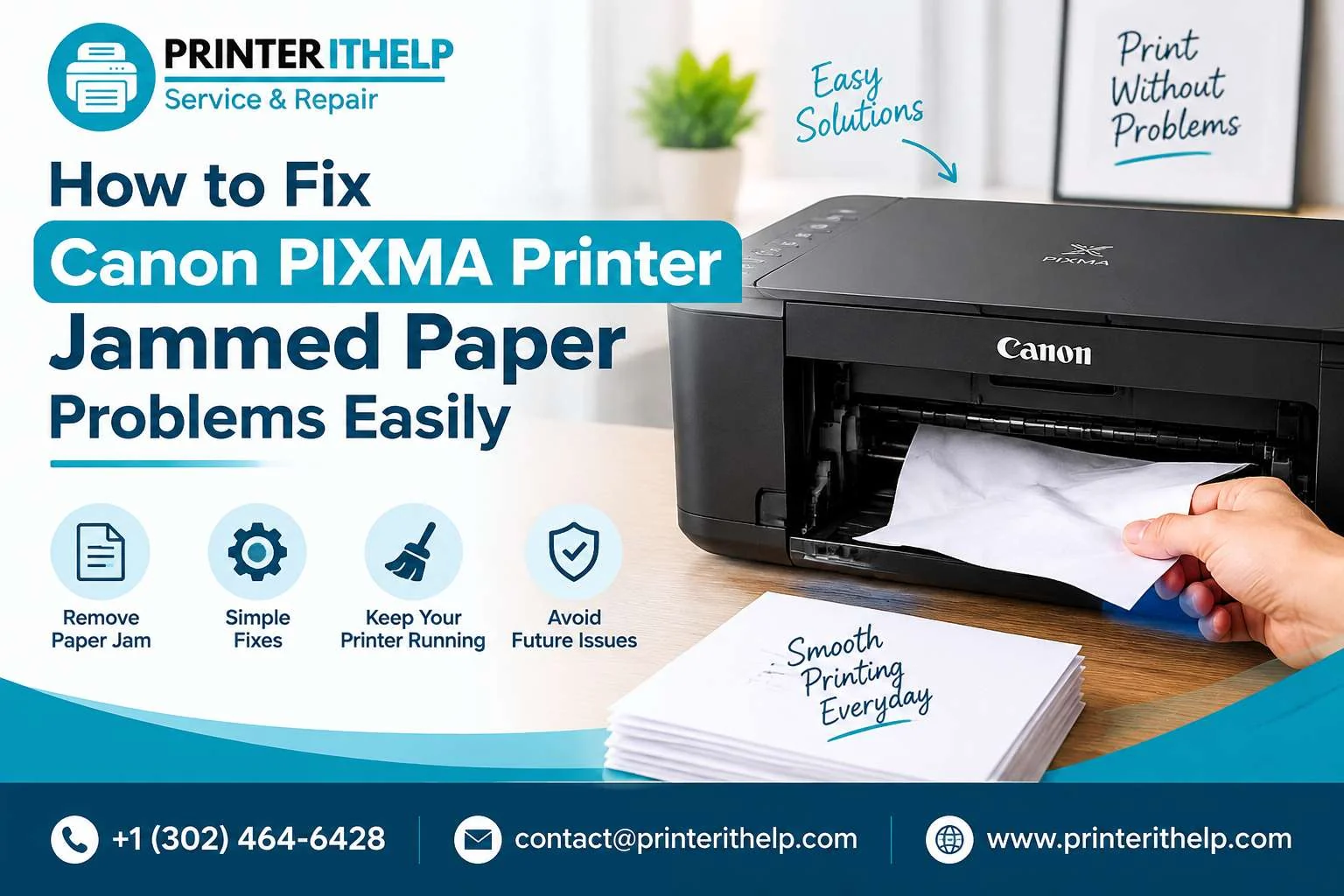
A paper jam in a Canon printer is one of the most frequent problems encountered by owners of the Canon PIXMA range of printers. If you encounter an issue where the printer ceases to print and gives you a paper jam error message, it will not only disturb your schedule but can also hold back some important papers. However, there is good news for you, as the majority of the paper jams encountered can be solved easily by adopting the right approach.
The Canon PIXMA range of printers is one of the most efficient and reliable ranges of printers available for office and household use. However, just like other devices, these printers too face problems regarding paper feeding from time to time.
Some Of The Common Causes For Canon PIXMA Printer Paper Jams
Before solving the problem, it would be better to know what the possible reasons behind the paper jamming of your printer are. This will help you to avoid the same problem in the future.
Improper Paper Loading
The main reason for most printer jams is the wrong positioning of the paper inside the paper tray. The paper should be loaded in such a way that the printer pulls it easily.
Always make sure that the paper is loaded in a proper manner in the tray and the guides hold the paper properly.
Poor Paper Or Use Of Incorrect Type Of Paper
Old, folded, curling, or poor-quality paper often leads to feeding problems for the printer, as this paper does not pass through the printer rollers easily.
Always use the paper recommended by Canon for your printer model.
Overloading the Paper Tray
Adding too many sheets to the paper tray can put extra pressure on the feeding system. This can cause multiple pages to enter together or create a jam inside the printer.
Check the maximum paper limit and avoid filling the tray beyond the recommended level.
Dust and Dirty Rollers
Printer rollers help move paper inside the machine. After some time, dust and paper may get collected on them, decreasing their ability to hold the paper.
Cleaning will improve the movement of paper and prevent printing interruptions.
Repairing Canon PIXMA Printer Paper Jam Problems
Here are the simple ways to safely get stuck paper out of your printer.
1. Turn Off Your Printer and Remove Its Power Supply
Before examining the interior of your printer, turn it off and disconnect its power supply cord. This will ensure your safety from the moving parts of the device and prevent any possible damage.
Take a moment before starting to remove stuck paper.
2. Check the Printer Output Tray
First, examine the output tray of your printer that holds the printed pages. In case of the stuck paper in the output tray, take it out by hand.
Do not pull the paper out abruptly since it may get torn and cause paper scraps to stay inside the printer.
3. Open Your Printer and Examine Internal Parts
Open the cover of your Canon PIXMA printer and examine the internal mechanism. Look for any traces of stuck paper near the area of the cartridges and rollers.
4. Inspect the Rear Paper Path
Many Canon PIXMA models allow access from the rear side of the printer. Open the rear cover and check for paper pieces stuck near the rollers.
Carefully remove any visible paper without touching sensitive internal parts.
5. Remove Remaining Paper Pieces
Small pieces of paper left inside the printer can continue causing errors. Use a flashlight to check corners, rollers, and hidden areas.
Make sure the entire paper path is clear before turning the printer back on.
6. Clean the Printer Rollers
Dirty rollers can prevent smooth paper feeding. Clean the rollers gently using a soft, dry, lint-free cloth.
Avoid using excessive water or harsh cleaning products because they may damage internal components.
7. Reload Paper Correctly
After removing the jam, reload paper properly into the tray.
Follow these tips:
- Use the correct paper size
- Keep sheets properly aligned
- Adjust paper guides correctly
- Avoid mixing different paper types
- Do not overload the tray
These steps can help prevent future paper feeding issues.
How to Reset Canon PIXMA Printer After Clearing a Jam
Sometimes the printer may continue showing a jam error even after removing the stuck paper. In this situation, resetting the printer can help clear the warning message.
Follow these steps:
- Turn off your Canon PIXMA printer.
- Remove the power cable.
- Wait for around one minute.
- Connect the power cable again.
- Turn on the printer.
- Print a test page.
If the printer works normally, the error has been successfully resolved.
How to Fix Repeated Canon PIXMA Jammed Paper Issues
If your printer experiences frequent jams, the problem may not only be caused by paper. Check the following areas:
Check Paper Quality
Using the wrong paper type can repeatedly create feeding issues. Choose paper that matches your printing requirements.
Check Printer Settings
Make sure the selected paper size and paper type in your computer settings match the actual paper loaded in the tray.
Check Roller Condition
Worn or damaged rollers may not grip the paper properly. If cleaning does not improve performance, professional inspection may be required.
Update Printer Drivers
Outdated printer drivers can sometimes create communication problems between your computer and printer. Installing the latest drivers can improve compatibility.
Preventive Tips to Avoid Future Paper Jams
Regular maintenance can keep your Canon printer working smoothly.
Keep Your Printer Clean
Remove dust from the printer area regularly. Clean external and accessible internal areas carefully.
Store Paper Properly
Keep paper in a dry and flat location. Moisture can cause pages to stick together and increase the chances of jams.
Avoid Using Damaged Sheets
Always check paper before loading it into the tray. Remove folded, torn, or damaged pages.
Perform Regular Maintenance
Cleaning rollers and checking printer settings periodically can improve printer performance and reduce common printing problems.
When to Get Professional Printer Support
If your Canon printer still displays a jam message even after taking out all visible paper, then there may be an issue with the sensors, rollers, and mechanical parts inside your printer.
Canon printer paper jam repair professionals can help find such issues and give you the appropriate resolution to your problem without causing any more harm to your printer.
Remote printer assistance services can assist you with troubleshooting, driver updates, printer installation, and other hardware solutions.
Final Thoughts
A paper jam can interfere with your printing process; however, the majority of problems that may arise in a Canon PIXMA printer can easily be solved through troubleshooting. Checking the paper path, removing paper jams, cleaning the rollers, and using good-quality paper is enough to make your printer function normally again.
Should you be looking for ways to solve a Canon printer paper jam, the above methods can surely help you out with your problems.
If you continue with the maintenance and proper use of the printer, it will serve you well in all of your daily printing needs.
Professional help from a printer specialist is available for persistent problems.