A printer showing offline is one of those issues that looks simple but can have different causes depending on the brand and setup. But users sometimes misunderstood the meaning of offline printer. The offline printer error does not always mean the printer is disconnected. But the reason this happens varies across brands because each manufacturer handles communication between printer and operating system differently.
This guide covers what an offline printer error actually means when it tends to occur and how to fix an offline printer error on HP, Canon and Brother printers. If you have been dealing with this issue and the generic fixes have not worked, this guide is the right place to start.
What Is an Offline Printer Error
An offline printer error means the operating system has stopped recognizing the printer as available and failed to do the job. It does not mean that the printer itself has any issues but there are several other reasons. It happens due to the communication layer between system and device that has broken down. The issue may be at the network level, the port configuration or the driver. Jobs keep piling up in the queue but nothing prints until the connection is restored.
When and How Does an Offline Printer Error Occur
The most common situations include a router restart that gives the printer a new IP address. A Windows or macOS update might also reset port settings quietly in the background. Sometimes, a printer sits idle long enough to enter sleep mode and fails to reconnect after waking. Driver updates can also conflict with existing settings.
HP Printer Offline Error
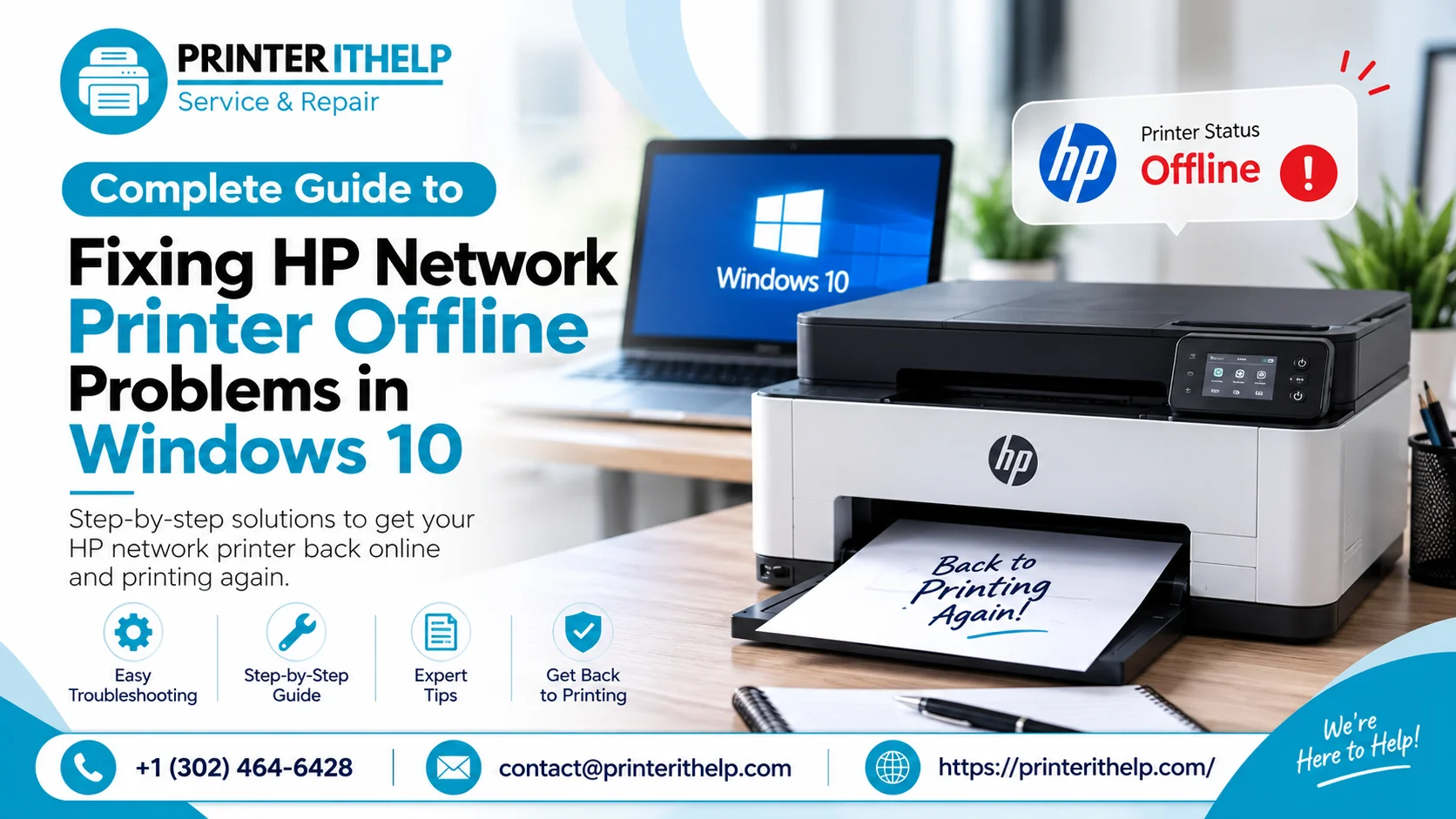
HP printers go offline most often because of a network drop or because Windows has quietly changed something in the printer configuration after an update.
How to Fix an Offline Printer Error on HP
Restart the Printer and Router: When you are trying to fix an offline printer error on HP, the very first step is to power off both the printer and the router. After this, wait for 30 seconds before make turn on. Give the printer a minute to fully reconnect to the network before checking its status. This single step clears a surprising number of offline errors that have nothing to do with drivers or settings.
Disable "Use Printer Offline" Mode: Sometimes the printer has an offline error due to the settings of the printer. To fix this, go to settings, select bluetooth and devices. Here you will find Printers and Scanners option. Open your HP printer and click on the print queue. At the top click the Printer menu and uncheck "Use Printer Offline." In this way, the offline printer error should not appear anymore.
Check the IP Address and Port Match: Go into the printer's control panel and find its current IP address under Network Settings. Then on your computer open Printer Properties and check the Ports tab. The port configured there needs to match the printer's actual IP. After a router restart this often does not match anymore and that mismatch is enough to keep the printer offline indefinitely.
Clear the Print Queue: Open the queue and delete every pending job. A single stuck job can hold the printer in an unresponsive state and sometimes that is all that is causing the offline status.
Reinstall Through HP Smart App: When you have tried all the options above and printer error is not going away, remove the printer from your system entirely. Now connect it again using the HP Smart app. It handles the connection and driver configuration automatically and is likely to deliver a cleaner result than a manual reinstall. If you are still facing offline printer issues, it is recommended to contact HP printer support online for quick fix the errors.
Canon Printer Offline Error
The most common reason for Canon printers to go offline is when the IP address assigned to the printer changes. It also happens when the WSD port which the system is using to communicate, stops responding.
How to Fix an Offline Printer Error on Canon
Print a Network Configuration Page: Most people skip this step and go straight to changing settings which usually makes things worse. Go to the printer's control panel, print a network configuration report and check the IP address it is currently using. That number is what everything else depends on.
Fix the Port Settings on Your Computer: Managing the port setting is the simplest way to fix offline printer error on Canon. Go to Devices and Printers, right-click the Canon printer and open Printer Properties. Under the Ports tab, check which IP address is active. If it does not match the one from the configuration report, add a new Standard TCP/IP port with the correct address and set it as the active one.
Use Canon IJ Network Tool: When you are using a wireless setup, Canon IJ network tool is very useful. You can download it from Canon support site. Once installed, run it and let it detect the printer on the network. It can fix the connection automatically without requiring manual port edits as discussed previously.
Clear Jobs and Restart the Print Spooler: Print spooler is an important point of the printing system and must be configured correctly. Open the print queue and cancel whatever setting is already there. Press the Windows Key + R and type services.msc. Find Print Spooler in the list, right-click it and press Restart. It sounds like an extra step but this one actually works more often than people expect.
Reinstall the Driver: After doing all the steps above and the printer keeps showing offline, try this. Uninstall the driver through Device Manager and get a fresh copy from Canon official support page. Sometimes, a corrupted driver makes the offline error come back in the printer.
Brother Printer Offline Error
Brother printers go offline sometimes because IP addresses changed after a router restart. Also, sometimes due to the printer just coming out of deep sleep mode and it fails to reconnect to the network.
How to Fix an Offline Printer Error on Brother
Wake the Printer Properly: To wake up printer, press any button and wait until it is fully started up before doing anything on the computer. Brother printers in deep sleep mode sometimes show offline on the system but once it reconnects, the issue disappears.
Get the Current IP Address: Print a network configuration report from the printer's menu. Do not assume the IP address is the same as before. After any router restart, it may have changed, and working with the wrong address wastes time.
Update the Port on Your Computer: Go to Devices and Printers, right-click the Brother printer, and open Printer Properties. Go to the Ports tab and update the IP address with what the report shows. Honestly, this one change fixes most Brother printer offline errors and it takes about thirty seconds to do.
Run the Brother Print Repair Tool: Brother printer support offers print repair tools that handles offline errors automatically. It is worth running before attempting a manual driver reinstall because it covers most of the same ground with less effort.
How Printerithelp.com Can Help You Resolve Offline Printer Errors
When you are looking for how to fix an offline printer error on HP, Canon & Brother, it is sometimes better to take professional help. Especially when the error keeps coming back after every router restart or system update. Printerithelp.com provides dedicated remote support for printer errors including offline status issues across HP, Canon, and Brother devices.
Our technicians look at your actual system configuration, not just the generic symptoms. So instead of guessing through different fixes, we find what is specifically wrong. Whether it is a port mismatch, a driver conflict or a network settings issue. No repeating steps that already failed. For anyone managing multiple printers in an office setup, that kind of focused support saves a lot of time that would otherwise be spent on trial and error.
Conclusion
You have learned how to fix offline printer errors on different devices. These printer errors on HP, Canon, and Brother devices almost always trace back to a network communication issue, a port mismatch or a driver problem. The fixes are slightly different across brands but the logic is the same.
Start with the restart, check the IP address, fix the port and clear the queue. That handles most cases. If the error keeps coming back despite all of that, the configuration issue is likely deeper and getting proper support is worth it rather than repeating the same steps.