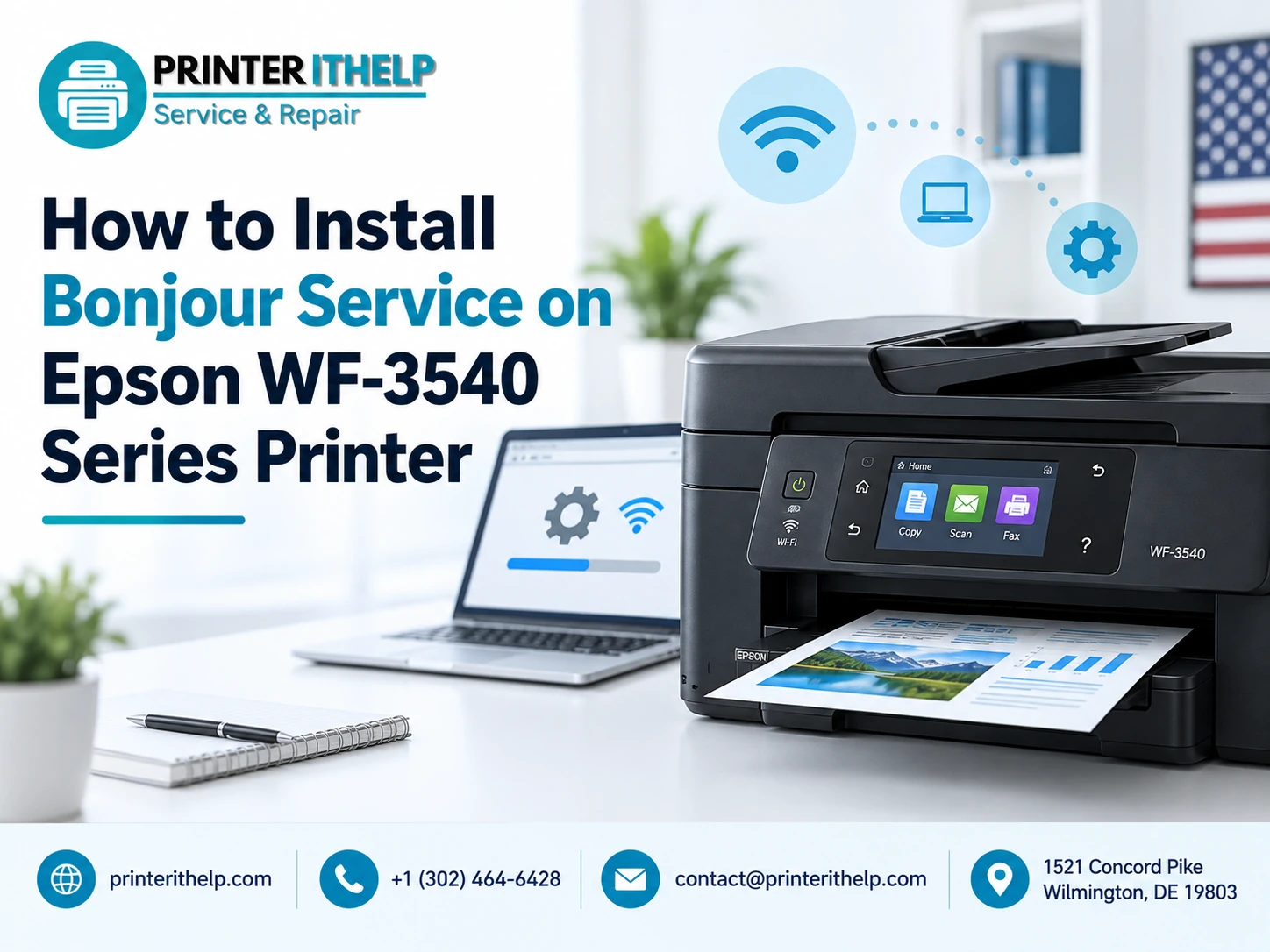
Printing from a wireless network may appear daunting at times due to the inability of the computer to locate the printer. If you are using the Epson WF-3540 series printer via a network connection, the Bonjour software will enable the identification of the printer. This manual gives the procedure for installing and using Bonjour on the Epson WF-3540 printer and what to look out for in case the printer is not detectable.
Ensure the printer is switched ON and connected to the same wireless network as the computer. It is advisable to have completed the wireless setup of the printer prior to network printing.
What Is Bonjour Service?
Bonjour is a network discovery technology that helps computers and other devices find supported services on a local network without requiring you to enter the printer's IP address manually.
For compatible Epson network printers, Bonjour can be used to search for the printer and support network printing features. Epson documentation also describes Bonjour as a service used for device discovery and AirPrint on supported products.
The important point is that Bonjour does not replace your printer driver. Your Epson printer still needs the appropriate software and driver for printing and scanning functions.
Check the Epson WF-3540 Network Connection First
Before installing or configuring anything, check the printer's wireless connection.
On the Epson WF-3540 control panel, open the wireless setup options and select Wi-Fi Setup Wizard. Select your wireless network and enter the network password when requested. Epson notes that the network name and password are case-sensitive, so enter them carefully.
After completing the connection, you can print a network status report if necessary. Check that the Wi-Fi indicator shows an active connection.
Your computer should also be connected to the same router or local network. If the printer is connected to one network while the computer is connected to another, Bonjour may not be able to find the printer.
Download the Correct Epson Printer Software
The next step is to install the official Epson software for the WF-3540.
To download Epson WF-3540 printer software, visit the support website for the product and choose your computer’s operating system. Download any printer software or drivers available for your particular operating system.
According to Epson’s user manual, the software installer is capable of helping users set up their wireless printers. For new printer installations, follow the instructions that appear on your screen rather than configuring various network settings manually.
Do not download printer software from random websites. It will decrease the probability of installing incompatible printer drivers or unnecessary software.
How to Install Bonjour Service on the Epson WF-3540
If you use a computer that needs Bonjour for printer discovery, then install Bonjour with the help of suitable printer software or system-supported package.
First of all, you have to close all the unnecessary applications. Then launch the printer software installer for Epson and proceed according to the instructions.
Select the wireless connection when the installer asks you how to connect the printer to your computer. The software will scan for any available Epson printers within your network.
If the WF-3540 is detected, then choose it and complete the installation process.
With suitable systems, Bonjour could be useful to display your printer as a network printer. On a Mac, Epson's own troubleshooting instructions show that a printer can be added again by selecting the device with Kind set to Bonjour.
If the printer does not appear, do not immediately assume that Bonjour is missing. The problem may be caused by the network connection, firewall, printer software, or router configuration.
Check Bonjour and Network Discovery
If the printer is already connected to your network but cannot be discovered, check whether network discovery services are being blocked.
Bonjour works within the local network, so the computer and printer normally need to communicate through the same network. Guest Wi-Fi networks can sometimes prevent connected devices from communicating with each other.
Also check whether your computer's firewall or security software is blocking printer discovery. Epson has documented cases where firewall settings can interfere with wireless software installation and recommends allowing the required Epson setup process when prompted.
If you temporarily change firewall settings while troubleshooting, restore your normal security settings after testing.
What to Do If the Epson WF-3540 Is Not Found
If Bonjour does not find your printer, start with the simplest checks.
First, restart the printer and computer. Then restart the wireless router. Wait for the router to establish the internet connection before checking the printer again.
Next, check whether the WF-3540 is still connected to the right Wi-Fi network. This problem should be considered together with the wireless connection and router operation if the printer fails to connect to a wireless access point.
The problem can occur if the printer loses its network settings. The Epson WF-3540 troubleshooting instructions recommend restoring Wi-Fi/network settings and reinstalling the product software when wireless installation fails.
Remove and Add the Printer Again
Sometimes the easiest solution is to remove an old printer entry and add the network printer again.
On a Mac, open the printer settings and remove the existing WF-3540 entry. Then use the option to add a printer and check whether the Epson device appears through Bonjour.
Epson specifically documents this approach for situations where the printer needs to be added back to the print queue.
On Windows, the exact printer setup screens depend on the operating system version and installed Epson software. If the printer is already installed but unavailable, removing the old printer entry and reinstalling the correct Epson software can help.
Common Epson Printer Problems After Installation
Even after successful installation, a printer may sometimes show connection or printing problems. These can happen because of an incorrect network connection, outdated software, a blocked firewall, or a corrupted printer queue.
If you see Epson printer messages on the computer or printer display, read the message carefully before changing settings. The exact wording can help identify whether the problem involves the network, paper, ink, driver, or another printer function.
For more complicated problems, Epson Printer Code Error and Messages can be checked against the appropriate documentation for the printer model. Error messages should not be ignored because some indicate a simple setup issue while others may require additional troubleshooting.
It is also important to distinguish between a network discovery problem and a hardware problem. If the printer works through another connection but cannot be found over Wi-Fi, focus on the network and software configuration first.
When Professional Help May Be Useful
If all this has been done but the printer remains undetected, there might be a need for further troubleshooting.
It may be helpful to seek the services of a professional printer installation services provider to help in checking the entire setup, including printer connection, driver installation, network, and computer setup.
Similarly, if the printer has multiple issues at once, such as connection issues, printing issues, missing drivers, or being constantly offline, it would be helpful to get professional printer troubleshooting.
Alternatively, online printer support can assist those users who do not want to take the printer to a service center.
Final Thoughts
The installation of Bonjour in the case of using the Epson WF-3540 printer series primarily includes the proper interaction between the printer, computer, network, and necessary software.
In order to install Bonjour, connect the printer to the right Wi-Fi network, install the necessary software, and permit communication through your security settings.
When the printer is not found, turn off all network devices, verify the Wi-Fi connection, adjust firewall settings, and reinstall the necessary software if needed. If it is supported, add the printer again through Bonjour in order to restore network printing.
Epson WF-3540 is an old printer model and, therefore, the setup screen can be different depending on your operating system and printer configuration. If possible, always refer to the official Epson guide for the installation process for the particular system and printer configuration.
In case you get an error called Epson Printer Codes Error, write down the exact error code in order not to change settings randomly, but to find the right solution.