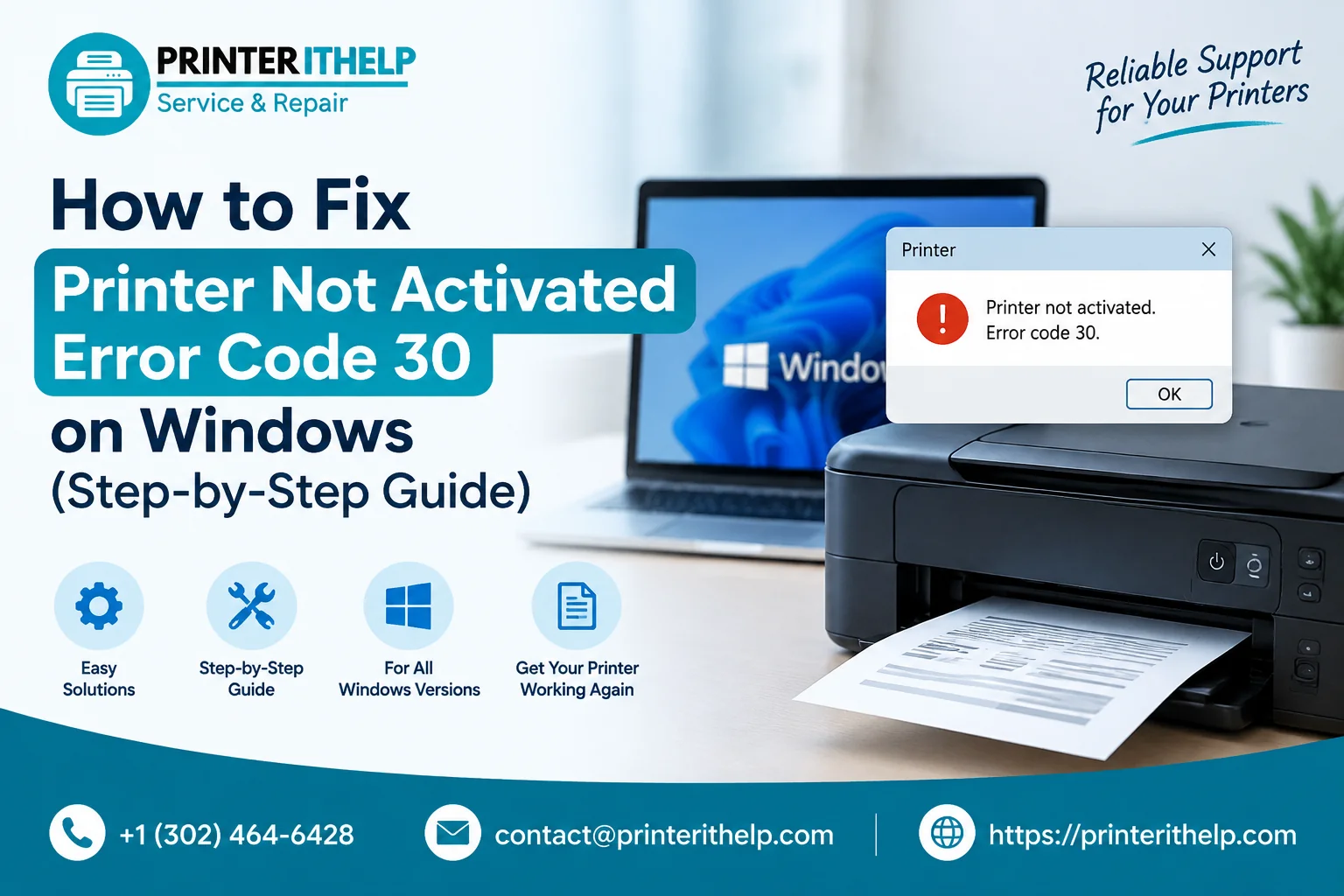
A printer is among the important equipment not only for personal use but also for office use. There could be a few problems that could occur when you try to print your documents. Among the most common problems faced by users of the Windows operating system while printing documents is the problem of Printer Not Activated Error Code 30.
It is an indication of a communication problem between the computer and printer or incorrect installation of the driver. There can be a number of reasons behind such a problem.
This paper is concerned with the discussion of the problem of Printer Not Activated Error Code 30.
Why Does Printer Not Activated Error Code 30 Happen?
Before applying solutions, it is important to understand why this error appears. Some common reasons include:
1. Printer Is Not Configured as Default Printer
The default printer is used by Windows when sending a print command. It is important that the printer be configured as the default printer to prevent any kind of printing error.
2. Printer Drivers Are Outdated or Corrupted
Drivers are needed to make communication between the printer and Windows possible. Lack of proper driver files may lead to failure in executing printing commands.
3. User Account Permissions
Sometimes Windows may restrict the use of printers due to a lack of permission for the user account. This results in the inability to access the printer from other programs.
4. Problems With Printer Settings
In case of incorrect printer configuration, missing services, or wrong connections, there may be activation errors.
5. Incompatibility of Program and Printer
Applications may require certain settings or permissions for printing to work properly. Otherwise, the program shows an error message.
How to Solve Printer Not Activated Error Code 30?
Try the below-mentioned troubleshooting solutions one by one to fix the problem.
Solution 1: Make Your Printer the Default Printer
Firstly, set your printer as the default printer.
Follow these instructions:
- Press Windows + I to open the Settings window.
- Click on Bluetooth & Devices.
- Select Printers & Scanners.
- Choose your printer from the available options.
- Click on Set as Default.
Now that your printer is set as the default printer, restart your computer and try printing again.
Solution 2: Update Printer Drivers
Problems with drivers are one of the most common causes of printer problems.
To update drivers:
- Press Windows + X.
- Select Device Manager.
- Expand the Printers section.
- Right-click your printer.
- Select Update Driver.
- Choose Search automatically for drivers.
Windows will search for the latest available driver and install it if required.
You may also download the latest drivers from the manufacturer's official website.
Solution 3: Reinstall Printer Drivers
If updating the driver does not fix the issue, reinstalling the printer driver may help.
Steps:
- Open Device Manager.
- Find your printer.
- Right-click and select Uninstall Device.
- Restart your computer.
- Connect your printer again.
Windows will automatically install a fresh driver.
A clean driver installation can fix many printing problems, including the printer not activated error code 30 in Windows 10 when the issue is related to driver compatibility.
Solution 4: Check Printer Permissions
Windows permissions can sometimes prevent applications from accessing your printer.
To check permissions:
- Open Control Panel.
- Go to Devices and Printers.
- Right-click your printer.
- Select Printer Properties.
- Open the Security tab.
- Make sure your user account has permission to print.
Save the changes and restart your system.
Solution 5: Restart Print Spooler Service
The Print Spooler service handles all printing tasks in Windows. When this service is disabled, your printer may not function properly.
Follow these steps:
- Press Windows + R.
- Type services.msc and press Enter.
- Find Print Spooler.
- Right-click it.
- Select Restart.
After restarting the service, check if your printer starts working normally.
Solution 6: Run Windows Printer Troubleshooter
Windows includes a built-in troubleshooting tool that can automatically detect and fix common printer problems.
Steps:
- Open Settings.
- Go to System.
- Select Troubleshoot.
- Click Other Troubleshooters.
- Run the Printer Troubleshooter.
The utility will scan for printer connectivity and configuration problems.
Fixing Printer Activation Errors on Different Windows Versions
Printer errors can appear on different Windows versions due to driver or configuration differences.
The printer not activated error code "-30" in Windows 11 might be caused by Windows updates or the use of outdated printer drivers. Users can update drivers and check printer permissions to resolve the problem.
Older computer systems that use Windows may face similar issues. If you have an older computer system, check printer drivers that are suitable for your particular version of Windows, such as the printer not activated error code 30 in Windows 7.
Other Printer Activation Errors You May Encounter
Apart from Error Code 30, users may also experience similar printer activation problems.
Error Code 41: Printer Not Activated
Such an error occurs due to possible software incompatibilities, wrong driver installation, or incorrect printer settings. This issue can be fixed by updating printer software and reinstalling drivers.
Error Code -20: Printer Not Activated
Such an error is usually associated with printer permissions or incorrect printer communication with Windows printing programs. You may fix the problem by checking your printer settings and updating the drivers.
More Tips to Avoid Printer Errors
To avoid future printing problems, follow these simple tips:
- Keep printer drivers updated regularly.
- Install Windows updates when available.
- Use original printer software from the manufacturer.
- Check USB or Wi-Fi printer connections.
- Restart your printer and computer occasionally.
- Remove unused printers from Windows settings.
- Keep printer firmware updated.
Regular maintenance helps improve printer performance and reduces unexpected errors.
Conclusion
Printer Not Activated Error Code 30 can be annoying when it is necessary to print important documents. However, it can be caused by simple issues like incorrect settings, outdated drivers, permissions, and Print Spooler problems.
Setting up your printer as the default, updating drivers, making sure permissions are correct, and restarting printing services will help you deal with the issue easily.
If the error appears even after trying all these solutions, professional printer assistance can help identify other causes such as incorrect drivers or configuration problems.