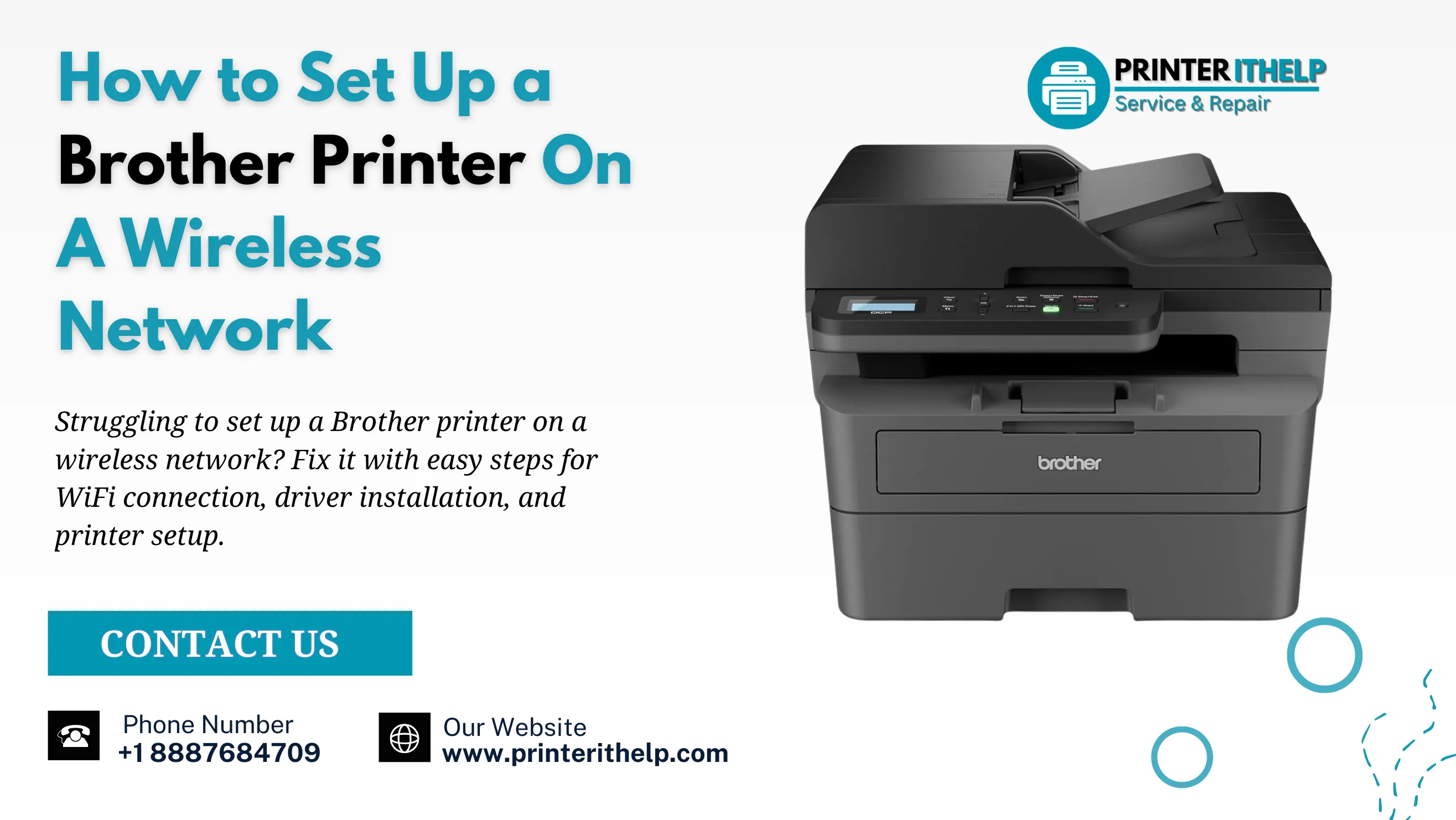
If you just bought a Brother printer, you may be having trouble to run it. Even though brother printers are beginner-friendly, the initial configuration and setup can be difficult. In this article, we will focus on how to set up a Brother printer on a wireless network or, specifically, on a WiFi network.
Printer setup sometimes sounds easy but you may face several issues like network not found, driver issues or any other settings. But not anymore as we will try to addresses the relevant issues regarding the standardized setup.
Things to Know Before You Sart Setting Up Brother Printer
Before you set up your printer, ensure the fundamental things are correct. In the very first step, know your WiFi name and password as they are the basic requirements for printer configuration. Next, look to see if your printer is working and check to see if it is close to your router until it is connected. Just give a quick test of the internet on other devices (such as your phone or laptop). If those are acceptable then you have a good router and can move on.
Setting Up Brother Printer on WiFi
So now let's get to the Brother printer WiFi setup. The configuration methods are almost similar but may vary a little depending on the printer models. On printer, press Menu and use the arrow keys to navigate to the Network or WiFi setting. Go into that and then look for something called Wireless Setup Wizard. Select that. This option basically walks you through everything on the screen so you do not have to guess anything.
Your printer will scan for nearby WiFi networks and show you a list. Find your network, select it and then type in your WiFi password. Be careful here because if you make even one small mistake, the connection will not go through. Once you enter it, hit confirm and just wait a few seconds. Your printer should show a message saying it is connected. Some models even print out a small sheet to confirm it worked.
Add Your Brother Printer to a Mac
Now that your printer is on the WiFi, you need to actually add it to your Mac so it knows the printer is there.
Click the Apple icon on the top left of your screen and go to System Settings. Look for Printers and Scanners and open it. You will see whatever printers are already listed there. To add your Brother printer to your Mac, hit the little plus button you see at the bottom of that list.
Your Mac will look around the network and your printer should pop up. Click on it and your Mac will take care of the rest on its own. It will grab whatever software it needs and finish things up. Once it is done, just do a quick test print to make sure it is all good.
Connect Your Brother Printer to a Windows PC
For Windows, the connection between the Brother printer and the PC is as simple. Click on Start and then Settings. Head over to Devices and then click on Printers and Scanners. Click the Add a Printer or Scanner button at the top and allow Windows to do its work.
It will search the network and your printer should show up in a bit. Click on it, follow whatever steps come up and Windows will handle the installation automatically. After that just print something to test it out and make sure it is working the way it should.
When Your Brother Printer is Not Connecting to WiFi
This is really one of the more aggravating things to have to endure. You have all you have done right but your Brother printer is unable to connect to WiFi and you don't know why. Don't get too concerned about it before you do a few simple things.
Just restart everything. Turn the printer off, turn the router off and wait about 30 seconds. Bring the router back on first and let it fully load up. Then turn the printer on and try the setup again. This honestly works more often than you would think.
If it still doesn't work, try to see what Wi-Fi network you are connected to. Many routers these days transmit two networks: one at 2.4 GHz and one at 5 GHz. The 2.4 GHz one is better for Brother printers.
Also go back and check your password one more time. It is really easy to miss a capital letter or a special character and that tiny mistake is enough to block the whole connection.
When Your Brother Printer Says Offline
Suppose you have rightly connected to the wireless network but it is still saying Brother printer is offline even if it is clearly powered on and connected to your system. However, you still can solve this problem by following the below mentioned steps.
Your brother works properly only if it is set as the default printer. You can check the status inside the system settings where all printers are listed. If any other printer is set as default, it may ignore or block your borther printer from connecting to WiFi. To fix this, set it as default and try printing again. That small change fixes things for a lot of people.
If you still receive an “offline” error when sending jobs to your Brother printer, you should completely delete your Brother Printer from your computer system and re-add it as a new device. Other than that, also disable the use printer offline option from settings as it could be the reason for not connecting to your printer to a WiFi network.
To disable this feature, simply right-click on the Brother printer icon in the device & printers area of your computer’s settings and uncheck that box if it is checked. After that, you should return to using your Brother Printers online as usual. This method of disabling “Use Printer Offline” is nearly always sufficient to resolve any “Brother Printer Offline” issues without having to try any more difficult methods to resolve.
Check Your Drivers If Nothing Else Works
The above discussed solutions are most effective and solve all minor and major issues if used properly. But if you are still facing the same challenge, then the issue might be something else and the most common is the driver issue in Brother printers. It is a small piece of software that is a bridge between your computer and printer.
Head over to Brother's official website, type in your printer model and find the latest driver for your version of Windows or Mac. Download it, run the installer and just follow the steps. When it is done restart your computer and give printing another shot. This clears up many problems that nothing else seems to fix.
Conclusion
Setting up your Brother printer on a wireless network is not difficult unless you know the exact process. Even if you don’t know the configuration precisely, you should at least understand what is preventing you from connecting a printer and computer. In this article, we have discussed the most common reasons which include offline issues, brother printer inherent issues, WiFi, driver issues, and others.
You can also get a guide and help from Brother's printer support page which has plenty of tools to diagnose the issues. But if you still fail to fix the offline or network error, get instant and 100% working help from PrinterITHelp. We are available 24/7 to provide advanced printer tech support for Brother and other leading brands.