Book Your Expert-Guided Online Printer Support Appointment
Get expert guidance for printer setup, maintenance, configuration, and troubleshooting from
our certified professionals.
4.5 Rating (Review Customer)
What Does Collate Mean When Printing?
When you try to print multiple copies from a printer in an organized manner, you may come across the term "collate," which is by default “ON” in popular applications like Word, Adobe, etc. But what does collate mean when printing? What is collating, and how does it work? We will find all the answers in this article that will save you a significant amount of time when you print next time.
What Does Collate Mean When Printing?
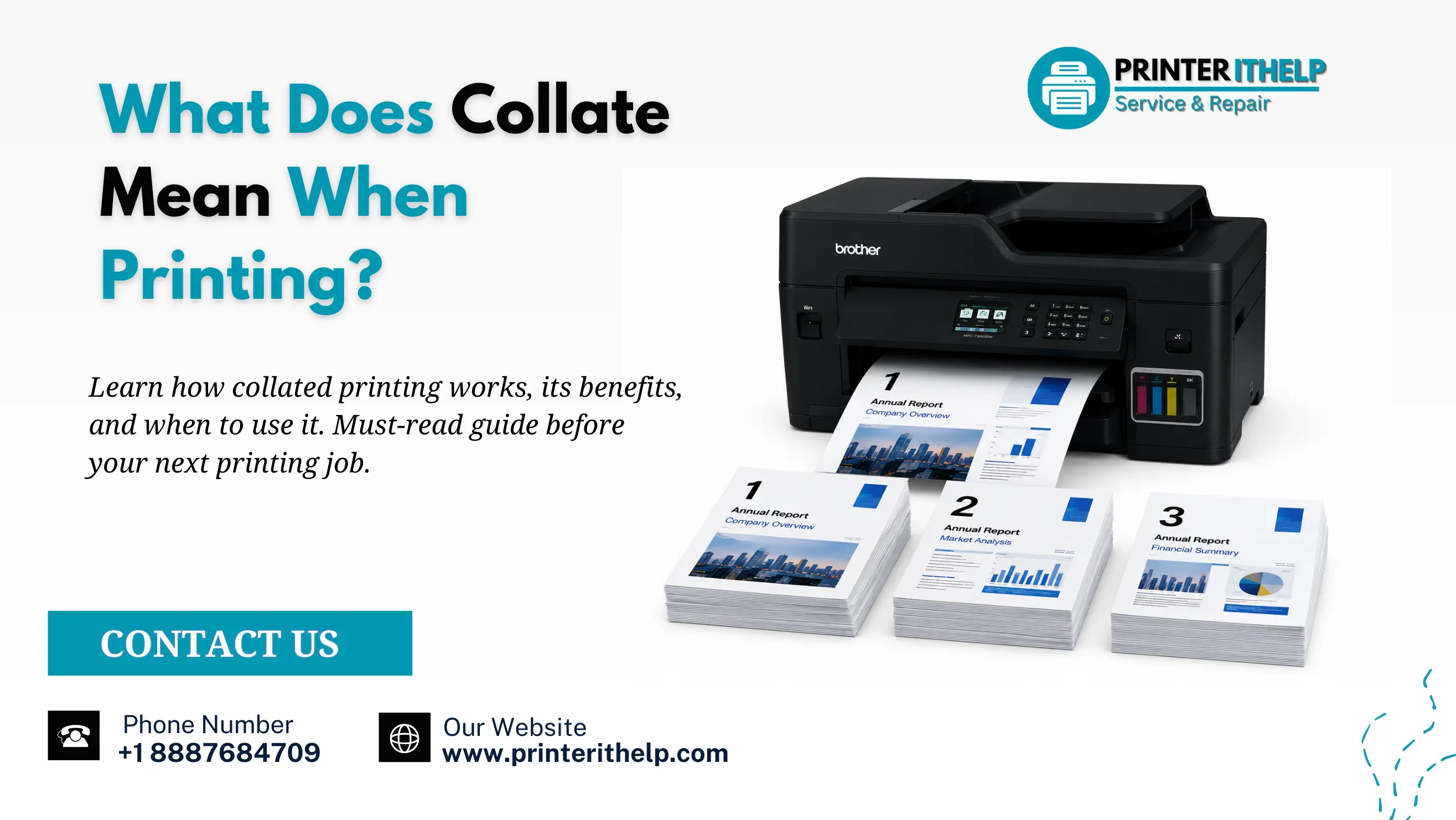
When printing, collate means to organize the pages of multiple copies into complete, numerical sets (Pages 1, 2, 3) rather than grouping identical pages. When collating is “ON” during printing, it automatically sorts the pages in sequence and prints them, which are then ready to read or bind. Overall, when you use the collate feature, it saves you a lot of time that would otherwise be wasted printing multiple copies of the same document.
Let’s understand what collating means in printing with a real-time example. Suppose you are printing 4 copies of a 4-page presentation for your client, and you turn on the collate from your settings, and the printer will print the copies in exact order:
Set 1: Pages 1, 2, 3, 4
Set 2: Pages 1, 2, 3, 4
Set 3: Pages 1, 2, 3, 4
Set 4: Pages 1, 2, 3, 4
In a nutshell, collating means organizing your printing in a sequence and improving efficiency. It allows you to print your documents ready to read or bind without manually sorting, shuffling, and keeping them in order. The "collate" feature is extensively used to print booklets, magazines, and other documents with multiple pages.
How to Turn On Collate When Printing?
Collate is typically activated by default across most modern computers and software applications when there is a multi-page document. If it turns off, the printer will first copy page 1, page 2, and so on. If your printer or document settings are not currently supporting collating the pages, follow the steps below to turn it on:
On Windows:
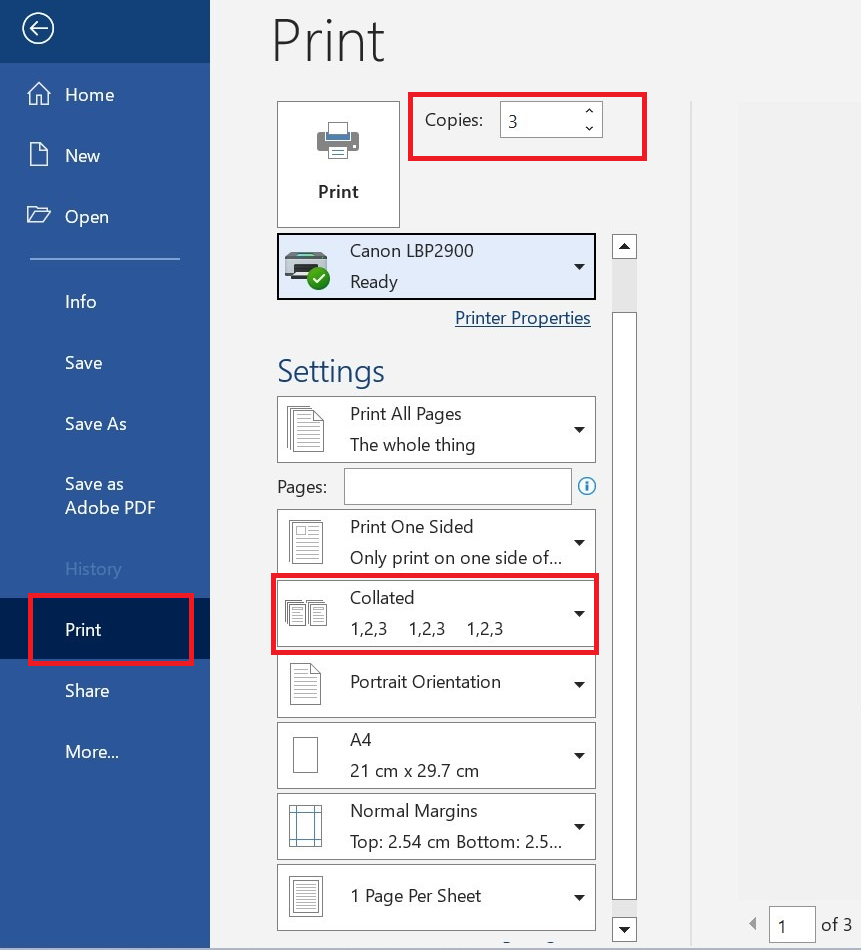
Press the CTRL key with P to open the printing interface or settings.
You will have the number of copies in the top of the copies tab.
Change the number to 2 or more depending on your requirement (It should be at least 2 to let the work collate).
Just below the printer name, you will see properties, preferences, or more settings for further settings.
Go back to the copies section and look at the bottom side “settings” option.
Select the “collated” option from the dropdown and it will automatically show your number of pages in that document.
You can also adjust pages per sheet just on the bottom of the page and finally click on the “OK” button.
Now this setting will be saved from now on for all your upcoming printing requirements when you have to print over 2 pages or copies.
On MacOS:
To activate Collate in MacOS, you need to open printing settings through cmd plus p (Cmd+P).
A small pop-up will appear with the show details option, and by clicking on that, you will get the collate option.
The rest of the setting and process of collating pages are the same as in Windows.
Note: Whether you are using Chrome, Edge, Firefox, or any browser, the basic details or process of collating the pages are almost similar. If you are unable to find out your printer settings, it is better to get guidance from online printer support to ensure you do not break any critical settings.
Collate vs Uncollated Printing
Collated printing prints and organizes multipage documents in a sequence (e.g., 1, 2, 3, 4) while uncollated printing groups all identical pages in a single document (e.g., 1-1-1-1, 2-2-2-2). The collated printing is an excellent choice when you have to print a booklet while the uncollated printing is efficient for printing requirements like flyers and posters.
Collated vs Uncollated Printing: What is the Difference
Aspect
Collated Printing
Uncollated Printing
Definition
Prints multiple copies in complete sequential sets (Page 1, 2, 3 → Page 1, 2, 3)
Prints all copies of each page together (All Page 1s: 1-1-1-1 → All Page 2s: 2-2-2-2)
Training manuals - Meeting handouts - Reports with multiple pages - Booklets
Mass single-page letters - Stickers/labels - Bulk identical pages
Cost
Costs more in time saved
Cost more in labor for sorting
When to Choose
When you need complete, ready-to-use document sets
For bulk identical pages, plan to sort pages separately
What Does Collate Mean in Double-Sided Printing?
Collate in double-sided printing means organizing multi-page documents into sequential sets with printing on both sides of the paper. When collating is enabled, the printer finishes one full copy first (Page 1 to the final page) in the correct front and back order before starting the next.
For Example: If you print 5 copies of a 10-page document with collate on, you get 5 perfect sets. Each set has Page 1 (front), Page 2 (back), Page 3 (front), and so on. You don't need to sort anything.
Without collating (uncollated), the printer prints all fronts and backs in big groups, and you have to sort the pages yourself.
How to Activate Collate in Double-Sided Printing
Open your document (Word, Adobe, etc.)
Press Ctrl + P (or Cmd + P on Mac) to open the print window.
Turn on Print on both sides (It is also known as Duplex or Two-sided in some devices).
Choose Flip on the long edge (this is the normal option for most documents).
Tick the Collate box (so you get full sets instead of loose pages).
Select how many copies you want.
Click OK to save the setting.
Note: The words you see ("Print on both sides", "Duplex", "Two-sided") can change a little depending on whether you are using Word, Google Docs, PDF or your printer brand. However, the basic steps of collate setting are the same for all.
Benefits of Collating For Printing
Collating in printing comes with significant benefits: It saves you a lot of time that would otherwise go into sorting and arranging the documents. Collating also comes with great convenience and is error-free so that you don't misarrange the pages during manual sorting. In modern browsers and printers, the collate feature is activated by default. If you have not yet activated the collate option in your printing, follow the above-mentioned steps and turn it on.
Saves Significant Time: Collate means in printing to organize all copies and pages in a sequential manner, and you don't have to sort the pages manually. When you turn the setting on or collating, it will be set as the default for all upcoming prints.
Reduce the Error: Humans are prone to error and when you are sorting hundreds of pages manually, there is a high chance that some pages are misaligned. And for precision, you may need to spend a longer time which ultimately costs more.
Maintain Professionalism: Let the printer do its work and you can focus on presenting your pages or whatever document you printed. With collating, the printer will sort and organize your pages in the proper manner.
Cost-Effective: Collatingrequires less tooling, labor, and fewer interferences; it remains an inexpensive feature that significantly cuts operational costs.
Should I Collate When Printing?
Yes, you should collate if you are printing a multi-page document and do not want to invest time in sorting and arranging. When you turn collation on, the printer prints all pages in numerical sequence like 1,2,3,4, etc for all copies. When you turn on collate for double-sided printing, it prints pages front and back in sequence rather than identical pages in a group.
You should leave it unchecked if you actually want multiple copies of the exact same page. This is what you want for single booklets or if you have a specific system where you need all the page ones in one folder and all the page twos in another. Basically, if you want complete booklets ready to hand out immediately, keep it on. If you want to sort them your own way later, turn it off.
Need More Help With Printer Settings?
While the collate feature works automatically on most printers as we discussed above, sometimes you might face issues such as missing collate options, incorrect page order, printer driver errors, and others. Printer settings or driver conflicts are usually the reasons behind these issues instead of the document itself.
If you have already tried the basic troubleshooting steps and are unable to find the right setting, you should connect with dedicated printer support. PrinterITHelp provides online printer support, practical troubleshooting, and expert solutions for common printer issues and for all leading printer brands.
Our experts are available 24/7 to help you with all your minute to complex printing problems. Whether you are dealing with an offline printer, a wireless connection, or driver updates, all services are just a phone call away. Call us at +1 8887684709 or visit our website printerithelp.com to book a consultation.
Was this article helpful?
Thank you for your feedback! We’re glad this article helped you.
Sorry this didn’t help. Need more assistance? Click Live Chat below.