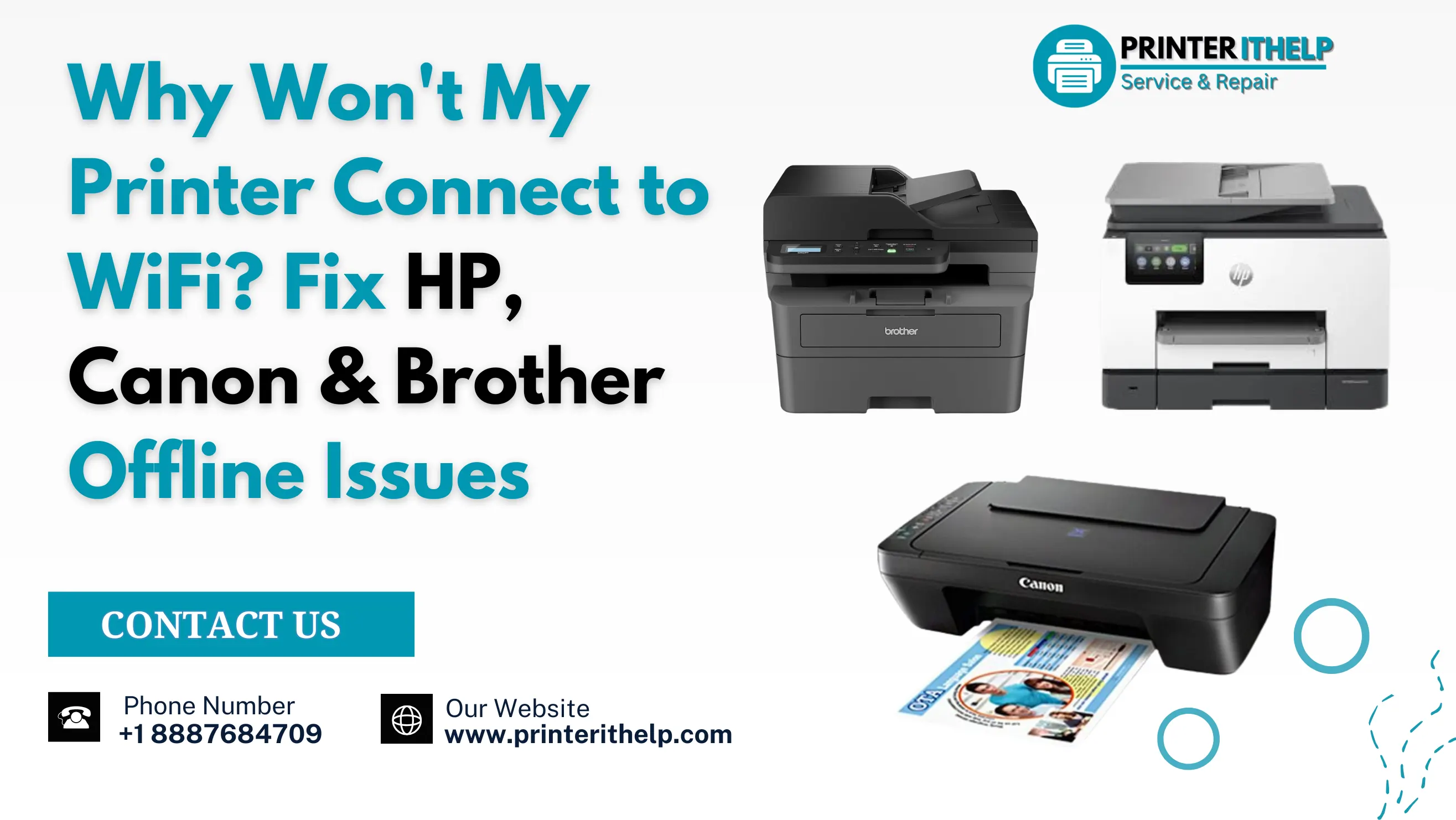
WiFi connectivity problems are the most common printer complaint people face when they are trying to print an important document. If you work at home or a small business and use an HP, Canon or Brother printer then you have faced this issue multiple times. The irritating part is when you don't know why this is appearing. Most guides just throw a list of steps at you without actually telling you what is going on or why.
This article is going to change that. We will walk through what actually causes HP, Canon, and Brother printers to go offline or not connect to WiFi. The problem is indeed very challenging but the solutions are easy if you follow this guide properly.
Why Don't Printers Connect to WiFi?
The most common cause of a printer not connecting to WiFi is a router restart. When your router reboots, it sometimes assigns a different IP address to your printer. The printer gets confused because it is still looking for the old address, and suddenly it cannot communicate with your network properly. Another very common trigger is a WiFi password change. If you updated your router password and did not update it on the printer, the printer is essentially locked out of your network and sitting there trying to connect with the wrong credentials.
Windows and Mac operating systems also have a habit of switching printers to offline mode on their own, especially after a system update. The printer is perfectly fine but your computer thinks it is unavailable and just stops sending jobs to it. On top of that, some older printer models only support the 2.4GHz WiFi band and if your router recently switched to 5GHz as the default, your printer cannot connect no matter what you try.
HP Printer Not Connecting to WiFi
Start With the Basic Troubleshooting
When people look for hp printer not connecting to wifi, they usually expect some complicated solution. But in a good number of cases, restarting everything is genuinely all it takes. To reset your printer, router and computer, you will need to turn all three devices off, then wait for 30 seconds.
Now first turn on your router and wait for it to fully power up, turn on your printer and wait for it to fully power and turn on your computer and wait for it to fully power up. By doing this it will refresh all network assignments and clear any temporary issues that were present before restarting these devices.
Use HP's Own Diagnostic Tool
HP has a free tool called Print and Scan Doctor and honestly more people should know about it. You can download it directly from HP's website and run it on your computer. It automatically detects what is wrong with your printer connection. It walks you through the fix step-by-step. For anyone dealing with hp printer not printing issues alongside connectivity problems, this tool handles both at the same time.
Reconnect Through the Wireless Setup Wizard
Wireless setup wizard is a built-in software tool located on control panel of the printer. Wizard setup is useful for users to connect the printer to a Wi-Fi network without needing a USB cable. You can find the tool under network settings. Open it up, pick your WiFi network from the list, enter your password and just let the printer do its thing and reconnect. This is the most reliable way to get an HP back on your network because it essentially starts the connection process from zero.
Update Your HP Printer Driver
An outdated driver is the major reason for why hp printer not connecting to the wifi. If your driver has not been updated for a long time, download the latest version from HP's official support page. Old drivers are often the invisible reason behind hp printer not printing correctly situations even when the connection itself seems fine. If you have gone through all of this and nothing is working, calling the hp printer online support is a viable option and you will get help based on your specific model.
Canon Printer Offline or Not Connecting
Turn Off the Offline Mode Setting
When you check your screen and it says the Canon printer is offline. When you check the printer, you see that it is present and functional with a ready or idle light but you don't see any issues. Before you unplug anything from the printer, open printer settings in Windows and right-click your Canon Printer. See if the Use Printer Offline option is sitting there checked. If it is on, turn it off. The offline message disappears and your printer starts working like nothing ever happened.
Remove and Re-Add the Printer
If the offline setting was not the issue, try removing the Canon printer from your devices list completely and adding it back again. It feels like overkill but it clears out corrupted connection data that can build up over time and cause your canon printer not responding situation to keep repeating itself. Once you remove it, go into your Canon printer's wireless settings and reconnect it to your WiFi network manually before adding it back to your computer.
Sort Out the Driver Situation
A missing or outdated printer driver is one of the most overlooked reasons behind Canon printer offline issues. For Windows users, it's advised to go to Canon's official website and download the Canon printer driver that corresponds to your printer's model then drivers for Windows 10. For Mac users, grab the Canon printer software for Mac version instead.
If your Canon printer does not have a driver installed on your computer or if the installed driver for your printer has become outdated, then your Canon will not be able to establish a communication connection with the computer through a WiFi connection even if a WiFi connection is present. Therefore, your computer and Canon cannot communicate.
Brother Printer Not Connecting to WiFi
Fix the Offline Status on Your Computer
If your brother printer says offline or your brother printer offline message keeps showing up, start by checking the same setting we mentioned for Canon. Open Devices and Printers, find your Brother printer, and right-click it to pull up the printer queue. Once that window opens, click the Printer menu at the top and check that Use Printer Offline isn't checked or enabled. A lot of brother printer offline situations are caused entirely by this one setting and have nothing to do with the actual WiFi connection.
Use the Brother Wireless Setup Wizard
Your Brother printer has a built in wireless setup option in its own menu. Go to the network settings on the printer's control panel and find the Wireless Setup Wizard. Select your WiFi network, enter your password, and let it connect. This is the cleanest brother printer Wi-Fi setup method and it works for most models. If your router has a WPS button, this is actually the easier route. Just press it on the router and go into your Brother printer's network menu and select the WPS option. The two will connect on their own, no password typing needed.
Adding Brother Printer to Mac or PC
If you are adding a Brother printer to a Mac, follow the simple steps as discussed ahead. First, go to System Settings then Printers & Scanners and press the + button. Your printer should appear there. One thing is important to note here that your printer is on the same WiFi network, otherwise your Mac won't see it.
On Windows, the Control Panel usually detects it automatically once it is on the network. If it does not show up, use the option to add a printer using a TCP/IP address and type in your printer's IP address manually. You can find the IP address by printing a network configuration page directly from your Brother printer's menu.
If you have genuinely worked through all of these steps and your brother printer won't connect to wifi, getting in touch with brother printer online support is worth it. It is because some issues are tied to specific firmware versions or model quirks that their team can spot quickly.
Tips That Keep Your Printer Connected
All the steps or troubleshoots discussed above may have already solved the printer connection issues you faced. But a couple of small things can help keep printers working consistently. The first thing you can do is to give your printer a fixed IP address through your router settings. It means the printer will always have the same address, so it won't mess up your devices after a restart.
Updating your printer drivers every few months is something small that can save you a lot of trouble later. And if possible, try to keep your printer somewhere close to your router with nothing blocking the signal between them — it really does make the connection much more reliable. And restarting your printer once a week instead of leaving it in sleep mode for weeks at a time actually helps it maintain a fresh network connection.
Conclusion
Printers are not connecting to WiFi and offline issues are genuinely annoying but they are almost never permanent. Whether you are dealing with an HP printer that does not connect to wifi, a Canon printer that keeps appearing offline or a Brother printer that refuses to join your network, the solutions are manageable.
Going through the right steps for your printer brand and keeping your drivers current will honestly sort out most of the problems you will run into. But if things still aren't working and you are unsure how to fix them, PrinterITHelp is a reliable online printer support provider to get the help you need. Our team specializes in resolving all kinds of printer issues, so you can get back up and running without the frustration of figuring it all out on your own.